 Computer Laboratories
Docker issues 23-10-2018 08:25
Docker issues
For security reasons, Docker system daemon is disabled. When you start Docker, you will see the following message:
docker: Cannot connect to the Docker daemon at unix:///var/run/docker.sock. Is the docker daemon running?.
See 'docker run --help'.
It is possible do use Docker in rootless mode. You need to run following command:
dockerd-rootless-setuptool.sh install
Then you can use Docker as usual, like this:
docker run hello-world
Containers are created on local disk (in /media/poligon/username), they are not moved between computers and are deleted from disk after 7 days.
Additional information can be found in the manual
Przywrócenie stanu początkowego
If Docker does not start and other methods did not solve the problem, you can reset the settings and rename the Docker data directories by executing the commands:
dockerd-rootless-setuptool.sh uninstall
/usr/bin/rootlesskit rm -rf ~/.local/share/docker
mv ~/.docker ~/.docker_old
mv /media/poligon/${USER} /media/poligon/${USER}.old
Hardware issues 12-06-2018 14:35
Hardware issues
Sometimes hardware issues may happen. Generally we advise not to attempt any repairs - that's the role of laboratories staff and services.
Attempting repairs on your own you're putting yourself in a harm's way.
Black screen
Some of the more nasty students sometimes turn off computers' monitors. Such a monitor can be turned on with a button on the front. If this doesn't help do not fiddle with cables but call for administrator's help.
Faulty keyboard or mouse
If a given computer's keyboard or mouse is faulty, report it to laboratories support and it will be immediately replaced.
For toggling and switching keyborad and mouses from different computers we should cut off clean student's fingers. We're not doing that only because of hygiene conditions.
LaTeX issues 12-06-2018 14:35
LaTeX issues
"PK font could not be created"
If TeXnicCenter during file build shows following errors:
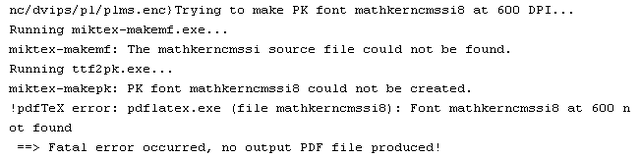
run command line:
Start -> Run -> cmd
execute following commands:
initexmf --mkmaps
initexmf --update-fndb
MSSQL Issues 12-06-2018 14:35
MSSQL Issues
Problems with connection to the Analysis Services Database
To connect you have to choose File, then Open and then Analysis Services Database.... Next, into Server name: field enter mssql-2017.labs.wmi.amu.edu.pl and choose your database.
It's important to use the correct name of the server! The word labs in the address is not accidental!
Access to server is possible only from a computer in the LABS domain. Outside of a Faculty access may be gained using a terminal server.
Mail issues 12-06-2018 14:35
Mail issues
Informations on this page concern faculty mail (in @wmi.amu.edu.pl domain). To learn more about difference between university and faculty mail, go here.
Sometimes issues with your mailbox may arise. The following are the most common causes:
Full mailbox
Space dedicated for your mail is limited. When you fill your mailbox, new messages won't be able to come. Also mail clients may stop working as expected, you can even have troubles with logging in.
Even if you believe that your mailbox is not overflowed, check just in case your available space.
Symptoms
- No new messages in inbox
- Unable to move messages to Trash
- When attempting to send mail to mailbox - return mail with information about exceeded quota
- Sometimes issues with login
Solution
Delete redundant mail from a mailbox.
Probably the best way is to start with Sent directory, containing sent mail and Drafts, containing written, but not sent messages.
Remember that by default messages are not deleted but moved to a Trash directoy. That behavior can be changed in settings - it is especially useful when there is no space to move a given message.
It is also possible to remove messages from server by logging in to it through SSH and using mail client pine or Mutt.
Moreover, it is possible to delete message files directly from a directory /var/mail/s123456, where s123456 is a username of a given user, for example with mc program.
Some of the mail subdirectories names start with a dot, which makes then hidden and causes that they are not shown by an ls command.
Overflowed home directory
Mail server keeps some files in a ~/Mail/ directory. If it cannot open them, e.g. because of lack of free space, problems with logging in through IMAP, POP3 or web page may arise.
Solution
Delete from a home directory redundant files, e.g. logging through FTP. Amount of used storage can be checked with quota command when logging through SSH.
Disabled cookies
If you want to read mail through a webpage, your browser must enable cookies and accept them from our domain. In other case it is impossible to log in to a mail page.
E-mail [FAQ]
Why is my login s123456, can it be changed?
Because of troubles with keeping order we decided about uniform account naming on a new faculty servers. All students have account with names starting with s and followed by ID number (e.g. s123456). We do not provide for the possibility of changing that for students. Faculty's employees have accounts with arbitrary chosen names.
But such an address is hard to remember!
We acknowledge that, that's why we implemented aliases which every student can configure on their own.
Why can't I send mail from home/work/cafe?
But you can! All you have to do is to connect through VPN and turn on SMTP password authorization.
Why so much obstrucion?
Because of often use of open-relay servers for sending spam, we were forced to authorize users sending mail through server.
I'd like to redirect mail to other account
See: Mail
I'd like to filter part of messages, few send to some other account, put some to separate inboxes and delete some...
See: Mail
Mailing lists [FAQ]
What are mailing lists?
Mailing lists are a service enabling sending the same mail to many accounts.
See: Mailing lists
Which mailing lists are available for students?
See: Mailing lists
How does list moderation work?
Because of a great amount of spam/ads every e-mail sent to studenci list is moderated, which means that it is read by administrators and only after acceptation is sent to students.
What mails can be sent to studenci lists?
To those lists only important messages regarding studies at a Faculty, student clubs and organizations can be sent. All e-mails regarding buy/sell/job advertisements, as well as personal matters won't be let through.
I've sent an e-mail to a list, but it didn't arrive
There are two possibilities:
- You've sent an e-mail to a moderated list (see above), in which case your mail awaits acceptation of one of administrators. If it's a very important matter - you can come to room A1-26 and ask for checking mail and accepting a message. Unless your mail was sent to an incorrect place, in which case it won't show up.
- You've sent an e-mail to an unmoderated list, but from a different e-mail than the one with which you're signed in. If that mail is very important - it will be moderated. In other case - send it again, but from a correct account. We remind you that aliases won't suffice - you have to send an e-mail from an s[index]@wmi.amu.edu.pl account.
Can attachements be sent to lists?
No. They have to be put onto webpages and only be linked.
I need my own list for scientific reasons. Can it be set up on a mail server?
Of course. Send to helpdesk proposed list name and list's administrator e-mail.
How to sign in to some list, e.g. science club?
Send an e-mail with content subscribe to a listsname-request@wmi.amu.edu.pl address.
Mozilla Firefox issues 12-06-2018 14:35
Mozilla Firefox issues
"Firefox is already running"

Symptoms of this issue are the lack of a browser window and display of the message "Firefox is already running, but is not responding. The old Firefox process must be closed to open a new window.".
If the folder is empty and Firefox displays an error on startup - it is sufficient to delete the file once.
Simultaneously launching two Mozilla Firefox processes on two different computers using the same account is not possible.
Check if a firefox.exe process is already running and in that case end it. Make sure that you're not logged in on another computer simultaneously. Also check if you have enough free space on the disk J: - in case of exceeded quota Firefox also won't launch.
If you still cannot launch a browser, the solution is deletion of the parent.lock file from current browser profile located at J:\.AppData\Mozilla\Firefox\Profiles\[your Mozilla Firefox profile name]\. If you have no idea what is the name of your browser's profile and you absolutely don't care about it, you may delete the whole J:\.AppData\Mozilla\Firefox\ directory, but you'll lose all personal settings and plugins installed.
"Changes to Firefox profiles"
Symptoms of this issue are launching a Firefox window with a clean profile (without add-ons, bookmarks) and a message about changes to profiles in Firefox. This is a direct consequence of the official change to profile management made by Mozilla with Firefox 67.
The fastest way of reverting to the old profile is:
- closing all Firefox windows
- right clicking on the Start Menu -> Run
firefox -p- selecting the old profile, most likely named
default, as the default profile
Password issues 12-06-2018 14:35
Password-issues
Passwords to faculty's services
Generally, students operate on two passwords:
- to the LABS domain
- to the USOS systemu
LABS domain password enables use of many resources made available for students by our Faculty. With it one can, among others, use Laboratories' computers, gain access to VPN, print or get access Resources share.
After admission to studies USOS password is transferred from online application system. To gain access to all services offered by a University it has to be changed.
People starting their second degree course use their old password.
Postgradurate courses students can get their USOS passwords in the dean's office.
Password change
If you remember your old password, you can change it at WMI panel.
In case that you don't remember your old password or for some reason it does not work, you have to show personally up to room room A1-26 with a valid student's ID. It is good to know which password you wanna change and have a new password already devised.
We do not change passwords for anyone by phone, e-mail, mail or any other. Only password change method is showing up in person in a room A1-26 with a valid student's ID.
Password change unsuccessful
Remember that a new password has to have at least 10 characters.
Unsuccessful login attempt
After a few failed login attempts account is temporarily locked out. Account is automatically unlocked after 2 minutes. If you don't want to wait, you can go to A1-26 to unlock it.
Printing issues 12-06-2018 14:35
Printing issues
General issues
If you've sent to printing some document and haven't found it on a printer, it may mean one of the following things:
Someone else took a document
Such situation happens rarely, but it cannot be ruled out. Someone else could by mistake take yours sheets (especially if they waited too long for pickup). It is best then to pick up printouts directly after sending them out for printing.
Exceeded balance
If you'll send for printing more pages than your available balance, none of them will be printed (do not count for printing "as much as possible"). Just check your balance and choose only amount of pages contained in that number.
Lack of permissions
Printer is just a device, and sometimes malfunctions happens. Printing is then not possible, or worse, quality of printout is very low. Most of the time it happens because of lack of toner. For students not to lose needlesly their balance, we block printing possibility until dealing with issues.
Jammed paper
It sometimes can happen that paper jams in printer. Appropiate warning explaining an issue appears then on screen. Inform about it staff in room A1-26. Problem will be fixed, and damaged pages added back to a balance.
Never try to fix anything on your own!
Profile issues 12-06-2018 14:35
Profile issues
The following is a list of the most common issues:
Profile size exceeded
During login, profile is downloaded from files server and during user's work on a workstation is stored locally in a directory c:\users\<username>. Size of those files is kept up-to-date by a program running in background, which will alert us with an "X" icon in the bottom right corner when profile size will exceed limit.
Delete then redundant files from a c:\users\<username> directory or move them to a home directory (j: disk) until whole profile won't exceed given limit.
This activity should be repeated in a \\files\profiles\<username>.v6 directory. If it is not done, locally cleared profile won't be saved on a server and issue will arise again after logging in on the other computer.
Profile's absence
If user does not have a profile yet, it will be automatically generated on the first login on Windows on a laboratories' computer.
Outdated locally stored profile
If, for some reason, your profile haven't been saved on a server (for example because of reeboot or shutdown of a computer), it's saved locally on a computer's disk. During next login of the same user profile is not downloaded from a server, but a local one is used - and during logout another try of server upload ensues.
As such a profile is usually rather old, and probably too large or just corrupted, issues may be expected.
Not enough space for a profile download
If a few users with large profiles won't log out correctly on one computer, their local profiles can take the whole disks' available space dedicated for their storage. It will, of course, render logging by other users in impossible.
If such an issue arises, report it to laboratories support (staff) including computer's name, we'll delete then local profiles from it, making space for yours.
Program issues 12-06-2018 14:35
Program issues
"XYZ program doesn't works"
Before reporting XYZ program's non-functioning/freezing check if you have free space on a J: drive - many programs saves there temporary data necessary to work.
Lack of programs
If you need some program or library for your project or classes, you should report it before start of a given semester. We have then possibility to install and test software before new installations are dispatched to classes.
We cannot install programs which University or Faculty does not have a license for. Of course most of the time free software is not an issue - provided that theu do not make exceptions for big institutions or multiuser environments. Shareware software is not considered free.
We do not install programs that can be substituted by already installed software and also those that create issues with system's security or stability.
One can also use terminal services server where we can if need arises install unconventional software.
Time Series Modelling issues 12-06-2018 14:35
Time Series Modelling issues
People who used Time Series Modelling (TSM) in older versions (e.g. 4.15 or 4.20) may have file settings.tsm saved in their home directory. Unfortunately this settings file is incompatible with new version of TSM, which causes error in file oxl.exe
If you encounter error of oxl.exe program during TSM's startup, most likely cause is the file j:\settings.tsm, which syntax does not correspond to newer program's version. To resolve an issue - delete that file or change it's name.
Remaining TSM issues should be fixed by a program launched by shortcut Time Series Modelling 4 Fix. If running it does not resolve a problem, contact laboratories' staff.
Visual Studio issues 12-06-2018 14:35
Visual Studio issues
Visual Studio doesn't launch or shows error messages
In this case one should search in StartMenu for Reset Visual Studio Settings script and execute it.
If problem persists after following this instruction, report issue to laboratories' staff.
Wi-Fi issues 12-06-2018 14:35
Wi-Fi issues
If your wifi adapter "can't see" network with SSID wmi or any other starting with wmi-, it could mean that:
Wi-Fi adapter is turned off
Make sure it's turned on - if your computer has physical wifi card switch, check if it's in right position.
If you cannot turn on wifi adapter (in case of laptops)
If after pressing button with antenna glyph corresponding icon does not light up, you probably have to install Power Manager from vendor's webpage. After installation button should work.