 Computer Laboratories
Compute cluster 08-11-2024 16:32
Compute cluster
Access to the faculty compute cluster is available on special request. This system focuses on usage of GPUs in machine learning, artificial intelligence and numerical methods, among others. Pure CPU computation modes are also available.
Acquiring access
In order to obtain access to the cluster a ticket has to be created in helpdesk. Request should contain following information:
- type of computation to be performed
- software to be used
- rough estimate of storage requirements
- estimated date of computation completion
- additional logins of team members if applicable, for creation of a shared project workspace
URL shortener 28-04-2022 14:14
URL shortener
Engish vesion of https://link.wmi.amu.edu.pl/ is under construcition.
Students and employees have acces to URL shortener. It is available at https://link.wmi.amu.edu.pl/.
To log in use credentials from the LABS domain - same as you use in laboratories.
After succesfull log in URL shortener allows to create shortened URL to any web page with https://link.wmi.amu.edu.pl/ alias.
To create your own URL enter a name in box Nazwa linku (which will be visable only to you) and URL to the page which you want the link to lead to.
Jenkins 18-11-2019 08:36
Jenkins
Jenkins is a tool for automating build, testing and deployment of projects. To acquire access to it create a ticket in helpdesk containing:
- login (sXXXXXX) of the project lead
- project name containing only letters, numbers - and _
- logins of project members
The system is available at https://jenkins.wmi.amu.edu.pl. Domain credentials are used (like in the laboratories).
By default a project folder is made available in which users can create objects, usually of pipeline type.
Git Configuration
It's possible to link Jenkins with our Git system. In order to achieve this both Jenkins and the repository has to be configured.
Jenkins configuration
- open the semester folder (e.g. 2026L) and open your project, if a
pipelineobject doesn't exist you have to create one - Configure
- Gogs Webhook
- Use Gogs secret
- Secret:
very long string
- Build Triggers
- Build when a change is published to Gogs
- Pipeline
- Definition: Pipeline script from SCM
- SCM: Git
- Repository URL:
adres SSH repozytorium(e.g. git@git.wmi.amu.edu.pl:s123456/project.git) - Credentials: git (SSH read-only access for git.wmi.amu.edu.pl)
- Repository browser: gogs
- URL:
HTTPS repository address(without the ending '.git') (e.g. https://git.wmi.amu.edu.pl/s123456/project) - Lightweight checkout
- Save
Git repository configuration
In the Git repository configuration:
- Settings -> Webhooks -> Add Webhook -> Gogs
- Target URL:
https://jenkins.wmi.amu.edu.pl/gogs-webhook/?job=PIPELINE-NAME(e.g. https://jenkins.wmi.amu.edu.pl/gogs-webhook/?job=s123456-project) - Secret:
very long string from Jenkins configuration - Add Webhook
- Target URL:
- Deploy Keys -> Add Deploy Key
- Title:
jenkins - Content:
ssh-ed25519 AAAAC3NzaC1lZDI1NTE5AAAAIOuVvhUjr+UosOx3IEBUi0IfV8Erv2OL3Er5pUHbjxNo
- Title:
Usage of SSH from the pipeline
It's possible to add SSH connection support from the Jenkins pipeline. A common usage would be copying of a built and tested application version, and performing actions on the remote server, for example restarting the WWW service.
The public SSH key used by Jenkins for external SSH connections:
ecdsa-sha2-nistp256 AAAAE2VjZHNhLXNoYTItbmlzdHAyNTYAAAAIbmlzdHAyNTYAAABBBKRso2eJ1wXHqD83Ii8Qem0kDWY5sCFVS6OczBpOPT+66nvOt5Z0VNajjZLkA5BXh0ZoZ+RqDQdi4JMndPvcEwY= jenkins-ssh-external
Requesting SSH for a project
To activate the SSH function create a ticket in helpdesk containing:
- Jenkins project name
- SSH host name
- SSH user name (it has to trust the SSH key specified above)
- absolute path to the directory used as the work directory over SSH
You will receive a SSH configuration name that will be required in the project Jenkinsfile in accordance to the codumentation.
An example Jenkinsfile implementation
Copying files over SSH
The section below will transfer build.tar.gz to the target SSH server:
stage('SSH-publish') {
    steps {
        sshPublisher(
            continueOnError: false,
            failOnError: true,
            publishers: [
                sshPublisherDesc(
                configName: "CONFIGURATION_NAME_RECEIVED_FROM_HELPDESK",
                transfers: [sshTransfer(sourceFiles: 'build.tar.gz')],
                verbose: true
                )
            ]
        )
    }
}
Performing remote actions over SSH
The section below will delete build.tar.gz on the remote SSH server:
stage('SSH-exec') {
    steps {
        sshPublisher(
            continueOnError: false,
            failOnError: true,
            publishers: [
                sshPublisherDesc(
                configName: "CONFIGURATION_NAME_RECEIVED_FROM_HELPDESK",
                transfers: [sshTransfer(execCommand: 'rm build.tar.gz')],
                verbose: true
                )
            ]
        )
    }
}
Azure Dev Tools for Teaching 28-02-2019 09:36
Microsoft Azure Dev Tools for Teaching
Microsoft Azure Dev Tools for Teaching is a system that allows students and employees to use legal versions of Microsoft software products on private computers.
In order to access the service an Office 365 account is required.
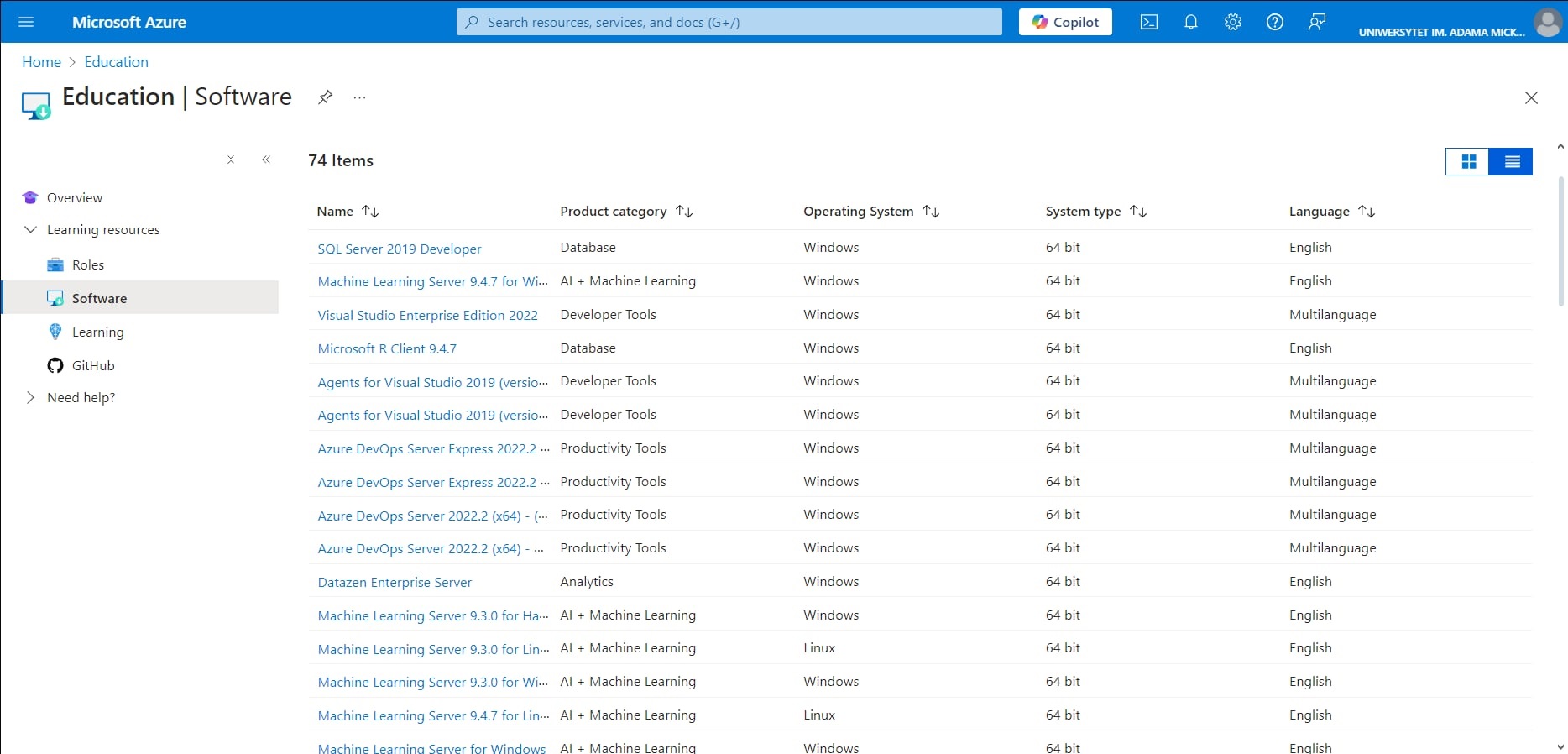
The process of obtaining legal software is very simple. Log in using your Office 365 account to aka.ms/devtoolsforteaching and verify your status. From Education choose the Software section and then software to download.
All support requests concerning Azure Dev Tools for Teaching have to be submitted directly to Microsoft via https://aka.ms/studentsupport.
Full right to use Azure Dev Tools for Teaching program is granted to every person studying or working on our Faculty. After finishing studies there is no need to delete software immediately, but eligibility for updates is lost.
Analytical database 12-06-2018 14:36
MSSQL Server analytical databases
Microsoft SQL Server 2017
Users have a possibility of obtaining a database on a faculty's MSSQL server.
Database can be obtained by any user or project group after submitting a ticket at helpdesk containing:
- information that you need an analytical database
- domain login of person responsible
- proposed, non-trivial database name (example of a bad name: pro2010)
- if database is to exist longer than one semester, proposed database's lifespan
- possibly domain logins of remaining members of project team
SQL Server Analysis Services analytical databases do not support SQL authentication. The only way to gain access is Windows authentication (only from computers in the LABS domain).
Connecting to the analytical database using Microsoft SQL Server Management Studio
- Server type: Analysis Services
- Server name: mssql-2017.labs.wmi.amu.edu.pl
Connecting to the analytical database using Visual Studio
To connect you have to choose File, then Open and then Analysis Services Database.... Next, into Server name: field enter mssql-2017.labs.wmi.amu.edu.pl and choose your database.
Access to server is possible only from a computer in the LABS domain. Outside of a Faculty access may be gained using a terminal server or connecting via VPN.
Databases deletion
Databases will be deleted after expiration date. By default this term amounts to one semester. There is a possibility of extending it. Before deletion, person responsible for a databasse will be notified by mail.
Android 12-06-2018 14:36
Android
Connecting an Android device to the WMI wireless network
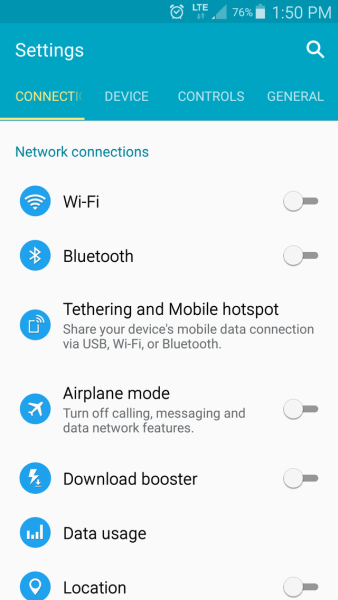
Open up settings on your device, find Wi-Fi and tap on it
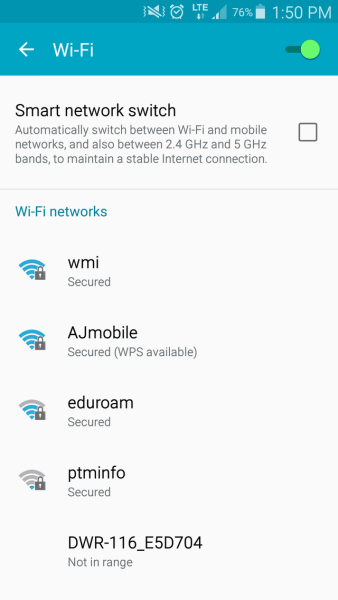
Select wmi from the list of available networks
If you can choose a value for the option Phase 2 authentication, choose
MSCHAPV2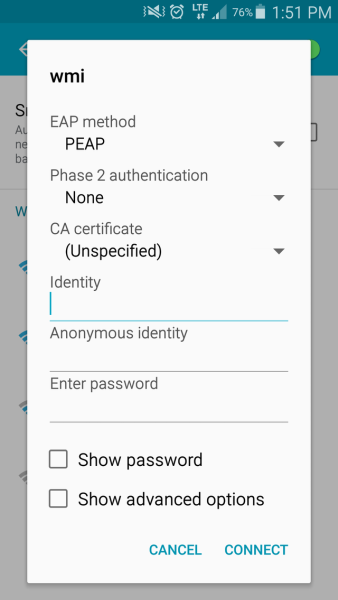
In the Identity field enter your LABS domain username, in Password - your password. Leave the field Anonymous identity blank.
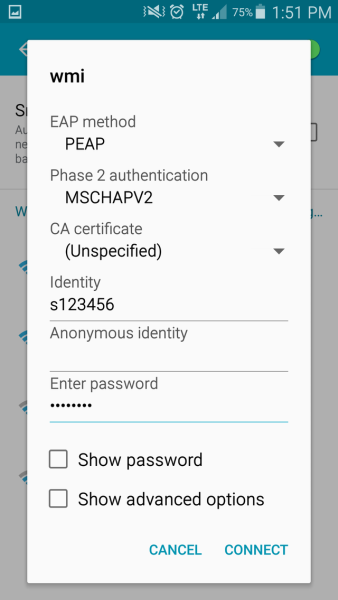
Click Connect. Your credentials will be saved and the connection will be established automatically.
If you have trouble connecting despite providing valid credentials, your account might have been automatically locked due to too many invalid login attempts. Wait 2 minutes or visit the Laboratories Staff and ask for your account to be unlocked.
Android 12-06-2018 14:36
Android
OpenVPN client is available in Google Play.
Log in to WMI panel and download file vpn_users.ovpn from VPN section.
Open OpenVPN Connect, and choose OVPN Profile:
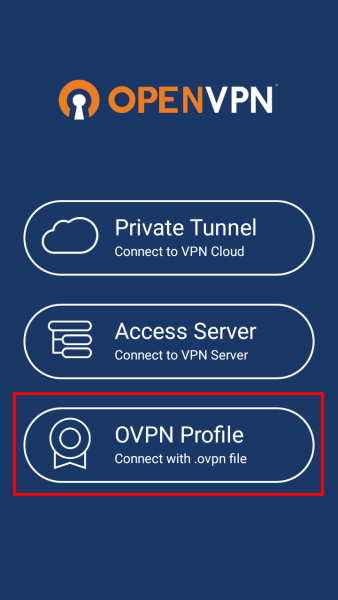
To import a profile, point to vpn-users.ovpn file and click IMPORT:

After successful profile import enter your login in a Username field and add configuration by clicking an ADD button.

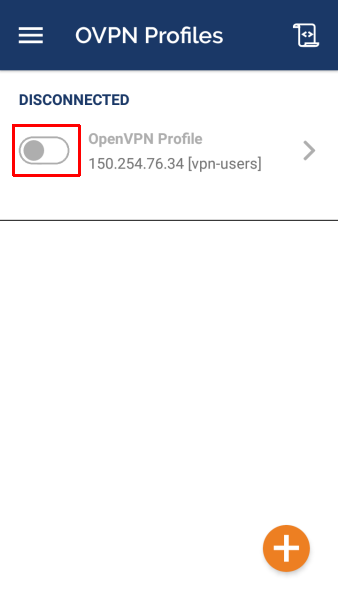
To start a connection, choose vpn-users profile and enter your password:
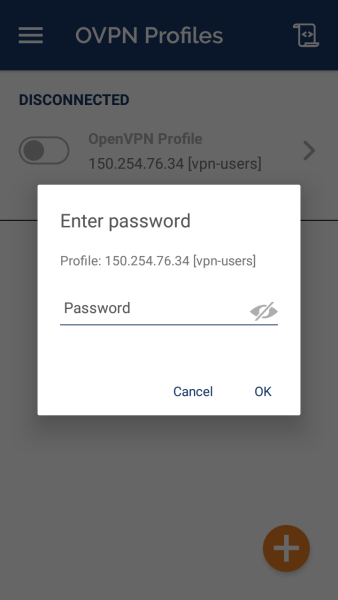
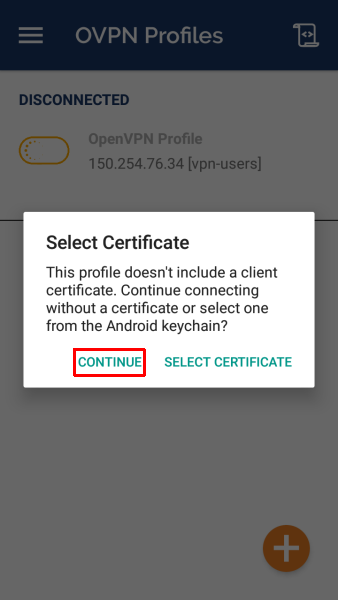
When prompted about certificate, click CONTINUE:
Azure 12-06-2018 14:36
Azure For Students
Microsoft is allowing our university students to use 100$ in provided cloud services on the Azure platform for 12 months.
Services
With Azure for Students, you can access the following cloud services:
- Virtual machines
- Azure SQL
- Windows Virtual Desktop
- Azure Kubernetes Service (AKS)
- Machine Learning
.. and more.
Access to virtual machines
To take advantage of the benefits of Microsoft's virtual machine and free resources, simply log on to azure.microsoft.com using your UAM organization email address (st.amu.edu.pl) and fill in your basic personal information.
System is avalible here.
Basic info
Rules
You can "rent" a virtual machine for a period of 750 hours, which means that you pay for the time the machine is on.
Always remember to turn off the machine when the work is finished! Otherwise you will continue to be charged even though you have finished working with the machine.
Machine options
Microsoft allows you to customize the virtual machine according to your needs, there is a choice:
- OS of the machine - (Linux - different distributions / Windows).
- GPU processor
- RAM
- Virtual processors (number / type)
- Amount of temporary memory - data storage.
Costs
Prices are dependent on machine configuration, for more information please visit Microsoft site.
Checking quota 12-06-2018 14:36
Checking quota
Amount of space available on your account you can check on a LTS server after logging in through SSH using command 'quota'. The following is an example of this instruction:
s000000@lts:~$ quota -s
Disk quotas for user s000000 (uid 12345):
     Filesystem   space   quota   limit   grace   files   quota   limit   grace
files:/home/students
                   716M   2048M   2048M           19149       0       0
  mx1:/var/mail     80K  51200K  51200K              24       0       0
On the example above it is visible that on an account 716 MB is available out of 2048 MB granted.
Eduroam 12-06-2018 14:36
Eduroam
Eduroam is a service enabling network access on the uniform rules in all scientific institutions taking part in the project. Service this is available to students and employees alike. Eduroam operation on the Adam Mickiewicz University in Poznan is handled by UAM IT Center. More information and configuration descriptions for different system can be found at http://eduroam.amu.edu.pl/.
Eduroam in Poland: http://www.eduroam.pl/
Eduroam in the world: http://www.eduroam.org/
Coverage
Eduroam network's access points are located:
- in the library
- in the main hall
- next to the admin room (A1-26)
External services 12-06-2018 14:36
External services
Faculty offers it's students and employees access to various services from external vendors:
GPU computing machine 12-06-2018 14:36
GPU computing machine
The previous method of acquiring GPU computation machines has been retired with the end of June 2024. Please contact us if you require access to previously provisioned resources. A new system is available at compute cluster.
Git 12-06-2018 14:36
Git
All LABS domain users have access to faculty's git server operating under Gitea software. It is available at https://git.wmi.amu.edu.pl.
After loggin in with LABS domain credentials, user has access to public repositories and those to which he has appropiate privileges. Everyone can also create a new repository.
Repository creation
In a top right corner symbol "+" is located. After clicking on it choose "New repository".
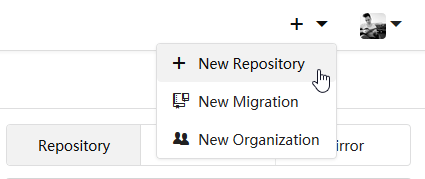
On a next screen enter name of a repository you want to create. It's the only required field. However, Gogs gives us possibility of automatic repository initialization with appropiate .gitignore file and/or license.
After choosing a license or technologies used to generate
.gitignoreset field Initialize this repository with selected files and template
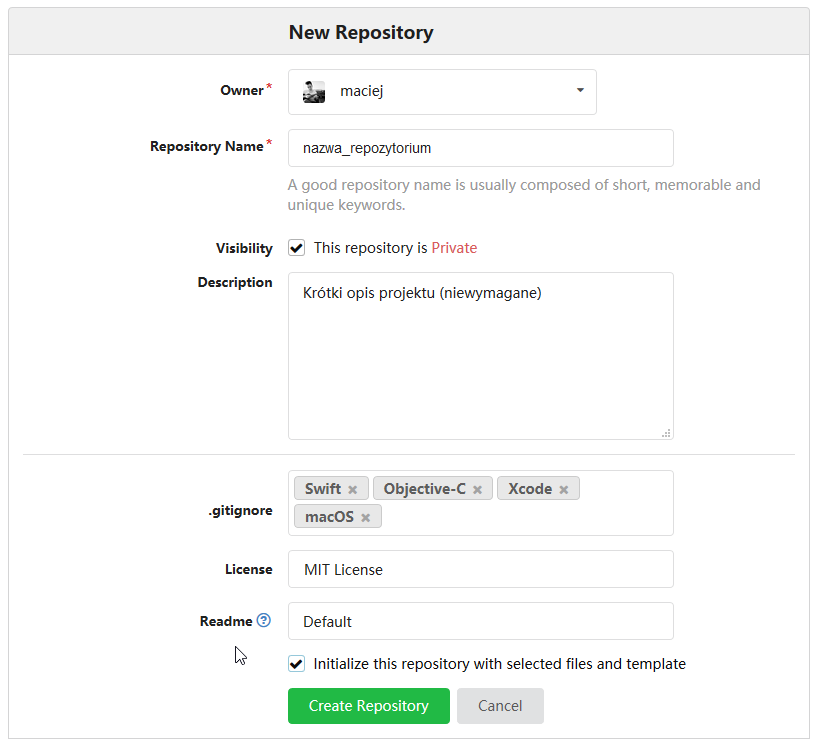
Ater clicking Create Repository repository should be created.

Organization
Organization in Gitea groups repositories and allows to create teams that can be assigned rights to repositories in the organization. In order to create an organization you should create ticket in helpdesk system containing:
- short explanation why an organization is needed
- organization name
- information whether the organization is to be available
- publicly
- for every authenticated user
- only for users added to the organization
It is possible to add team containing faculty employees that will be synchronized with our LDAP server (LABS domain). To do this, give your team name ldap_faculty. Members will be added based on their membership in LDAP group no later than 5 minutes after the team is created.
Home directory 12-06-2018 14:36
Home directory
From laboratories
Home directory is mounted automatically during login. On Windows it is available as disk J:, while on Linux as ~ or /home/group/login where group may be students, faculty or wmiguests - depending on the account type.
From Faculty's network
From faculty's network one may connect to the share through CIFS protocol, ie. enter \\files.wmi.amu.edu.pl\path in Explorator Windows' search bar and log in with LABS domain credentials. In case of employees accounts path has form: faculty\login, students: students\login.
On Linux it is possible to mount share (requires superuser's privileges) or use tools like smbclient (does not require special privileges).
Outside of Faculty
The easiest method is using an SFTP client (e.g. WinSCP or FileZilla on Windows) and connecting to lts.wmi.amu.edu.pl.
IOS 12-06-2018 14:36
iOS
This site describes how to configure wireless network in iOS. We used iPhone as an example.
Go to Menu -> Settings -> Wi-Fi and click on
wmi
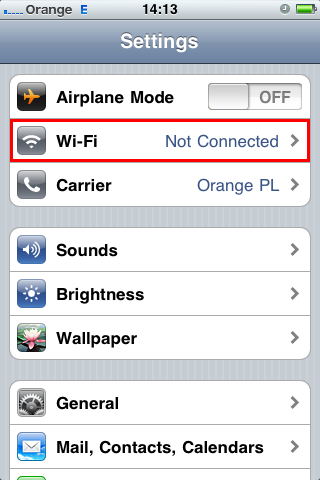
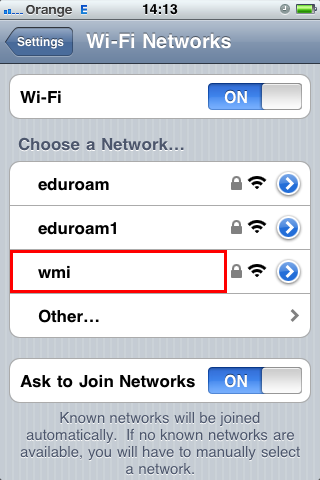
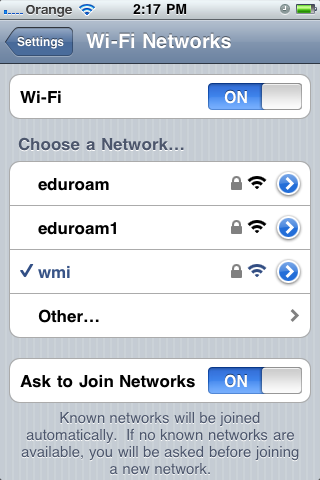
Fill in your login and password from LABS domain (the same that you use to log in in computer laboratories)

Accept the certificate from the
radius.wmi.amu.edu.plserver
Connection should be established automatically
IOS 12-06-2018 14:36
iOS
OpenVPN client is available in App Store.
You need OpenVPN Connect version 1.0.7 or newer (AES-GCM cipher support)
Log in to WMI panel and download file vpn-users.ovpn from VPN section:
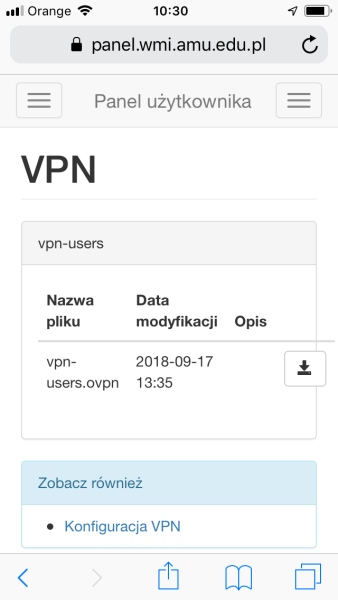
and open the file in OpenVPN Connect:

In app profile will appear as available for import. Choose an ADD option:

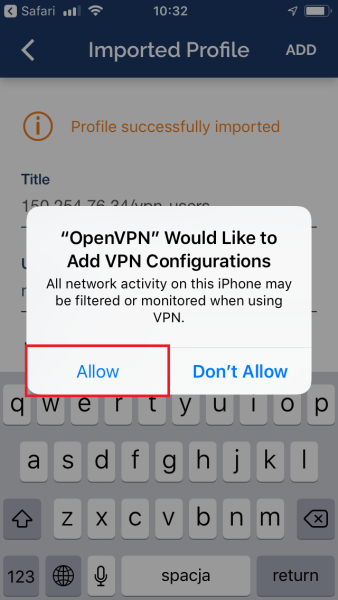
After successful profile import enter your login in a Username field and add configuration by clicking an ADD button. Confirm saving it in device's memory:

Jira 12-06-2018 14:36
Jira
The faculty Jira server (https://jira.wmi.amu.edu.pl) has been decommissioned due to Atlassian ending support for the hosted server versions. Previously created projects were usable until February 2025. For new projects please read the remainder of this article.
Jira projects can be created on Jira service on Atlassian Corporation servers. This service is free for the teams up to 10 users.
It is possible to connect the faculty git repository to the project. To do this, you need to:
- After logging in to the website https://git.wmi.amu.edu.pl generate an access token:
- Click your avatar in the top-right corner, Select "Settings", a then "Applications".
- Enter the token name, select "Read" under "repository" in the drop-down permissions list.
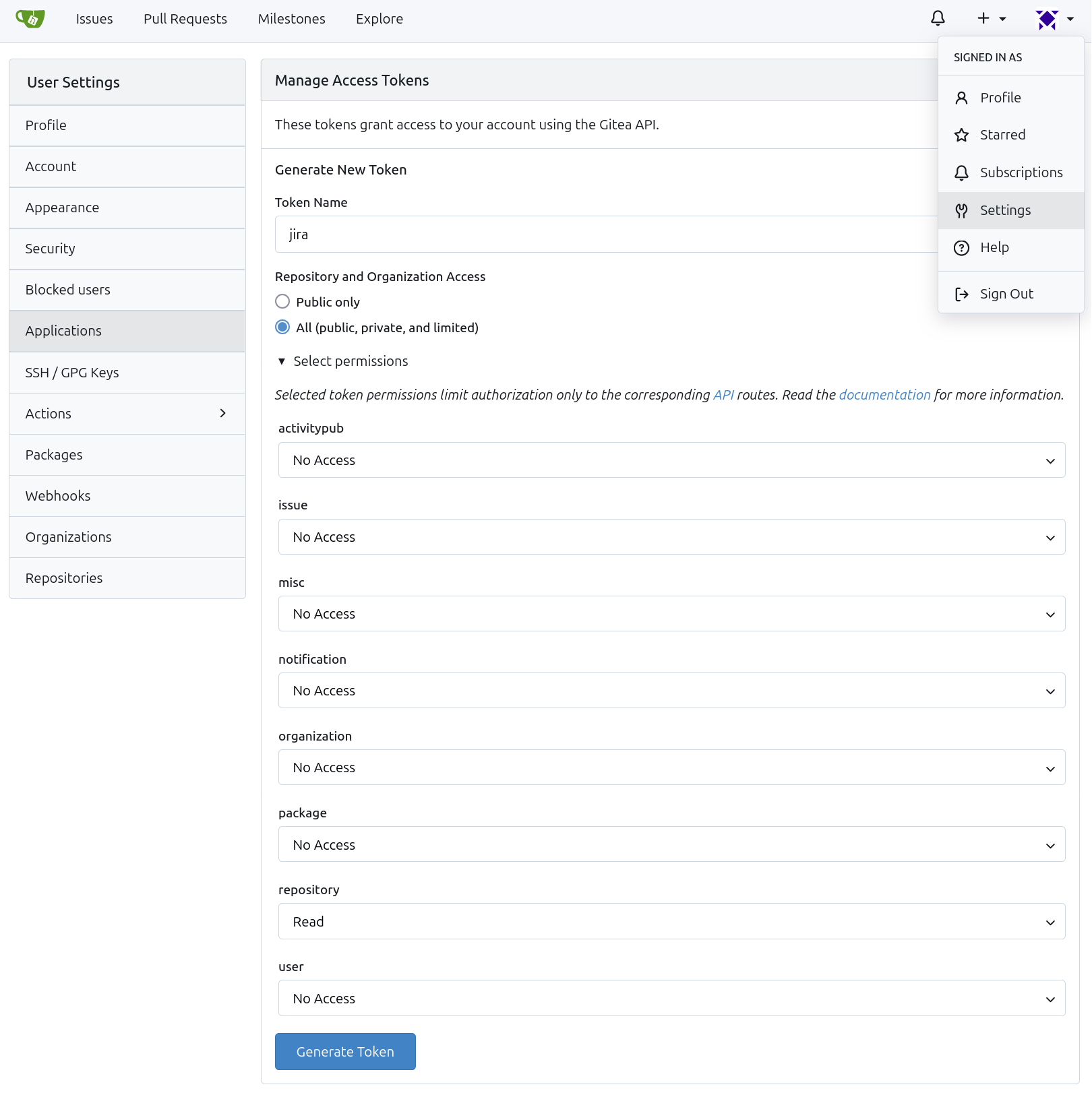
- After clicking "Generate token", the value like
db4aee634739dbdd5d9ed7445d43b7638f15ccjbwill appear in the blue field. This value should be copied for use in the next step.
- Install app named Smart Git Integration for Jira from Jira Marketplace.
- On the Jira project page, add a connection to the repository:
- Click "Apps" -> "Smart Git Integration" -> "Add repository".
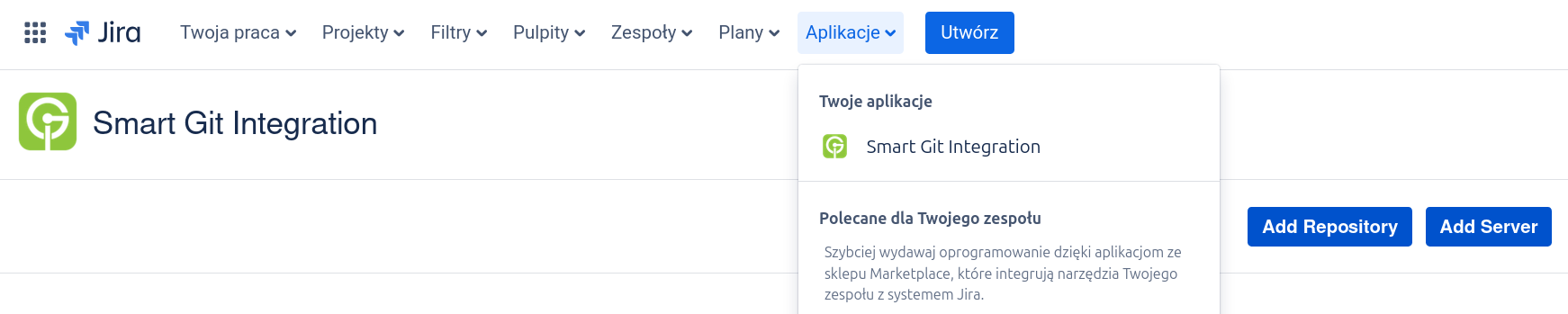
- Enter the link to the repository.
- Choose "Private".
- In the "Access Token" field, paste the previously generated token.

- Click "Apps" -> "Smart Git Integration" -> "Add repository".
LDAP 12-06-2018 14:36
LDAP
What is LDAP?
LDAP - meaning Lightweight Directory Access Protocol is a service provided by WMI enabling usage of directory services in the LABS domain.
How to connect with our LDAP server?
Informations required to connect:
- server name:
ldap://labs.wmi.amu.edu.pl - protocol type: LDAPS (TLS)
- port: 636
- CA certificate: ca_labs.wmi.amu.edu.pl.pem
- accounts suffix:
labs.wmi.amu.edu.pl
To connect from outside of the faculty's network VPN is necessary.
Example implementations in Java, Python and C# are available below. Every of those solutions requires other method of adding CA certificate to trusted list.
Java
CA certificate must be added to local trusted certificates store.
In case of a standard Windows installation one should from an administrative cmd modify certificate store JRE included in JDK:
C:\Program Files\Java\jdk1.7.0_51\bin>keytool -import -file <path to ca_labs.wmi.amu.edu.pl.pem> -keystore ..\jre\lib\security\cacerts
Then enter password (default changeit) and proceed along with the instructions.
Example program: LDAPJava.zip
Change credentials in source code to your own.
Python
Example program: py_ldap.zip
Required is Python 2.7 and library python-ldap.
Adding a certificate to trusted happens directly in code through setting ldap.OPT_X_TLS_CACERTFILE.
C#;
CA certificate must be added to local trusted certificates store.
In case of a standard .NET Windows installation one should add a certificate from an administrative cmd:
certutil -addstore -enterprise -f -v root <ścieżka do ca_labs.wmi.amu.edu.pl.pem>
Example program: CLDAPExample.zip
Change credentials in source code to your own.
LTS 12-06-2018 14:36
LTS
Client
To connect necessary is installation of x2go client available at https://www.x2go.org. Program is available for Windows, macOS and GNU/Linux systems.
Login
In X2Go client create a new session using following settings:
- Host:
x2go.wmi.amu.edu.pl - Login: LABS domain login
- Session type: MATE
- Display DPI: 96
Then one may log in using LABS domain password.
Disconnecting without logout
Advantage of using a terminal server is that session will be active for up to 8 hours since disconnect - therefore it is possible to leave running programs and disconnect with a server and then reconnect e.g. from other computer.
Linux 12-06-2018 14:36
Linux
This site describes how to configure wireless network in Linux with GNOME desktop environment. We used Ubuntu 9.10 as an example.
- Download certificate file from Wireless network to your computer. You can download it on another computer and copy it on pendrive.
If you can't download the certificate file before configuring the connection you can skip this step. We recommend doing it later to increase security.
Click on the network icon near the clock and then click "wmi". If you are configuring connection outside of the Faculty and "wmi" is not available, you can click "Connect to Hidden Wireless Network..." instead.
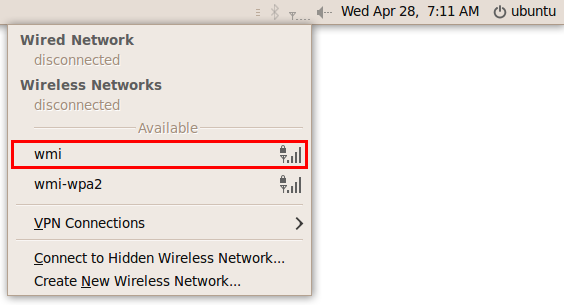
Fill in the fields as described below:
- Network name: wmi (field available if you clicked "Connect to Hidden..." in step 1)
- Wireless security: WPA & WPA2 Enterprise
- Authentication: Protected EAP (PEAP)
- CA Certificate: (certificate file downloaded from Wireless network, if you did step 1)
- Username: (your login from LABS domain)
- Password: (your password from LABS domain)
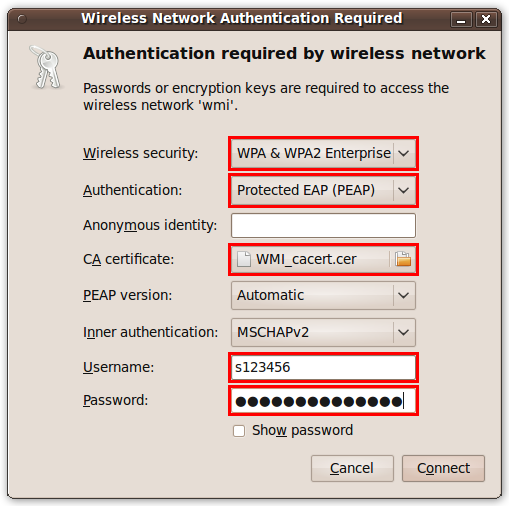
Click "Connect". Connection will be established.

If you skipped step 1 do it now and add the certificate in connection properites (right click on the network icon, and then click "Edit Connections...", "Wireless", "wmi", "Edit" and "Wireless Security").
Linux 12-06-2018 14:36
Linux
Popular desktop distributions (e.g. Ubuntu) allow for graphical configuration of network interfaces using NetworkManager. Installation of additional packages allows it to manage OpenVPN connections as well.
On Ubuntu the required package is named network-manager-openvpn and can be installed using:
sudo apt-get install network-manager-openvpn
Depending on the distribution the network-manager-openvpn-gnome package might need to be installed as well (this instruction is based on a standard desktop distribution of Ubuntu 22.04):
sudo apt-get install network-manager-openvpn-gnome
You need OpenVPN version 2.4.6 or newer (AES-GCM cipher support)
This guide requires downloading of the VPN configuration file from the WMI account panel.
Open the network configuration window: 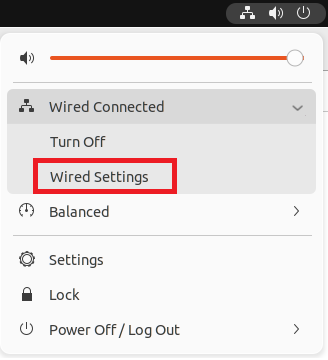
Add a new VPN connection: 
by importing the previously downloaded configuration file: 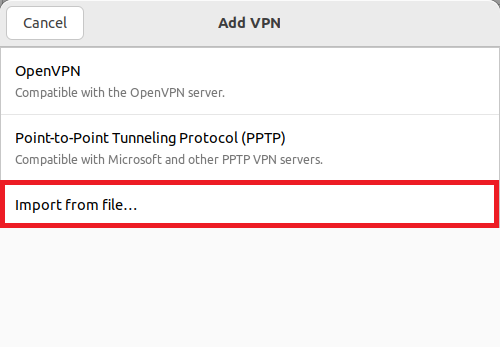
Next, enter your credentials. For VPN connection to operate properly it is also necessary to set some advanced options: 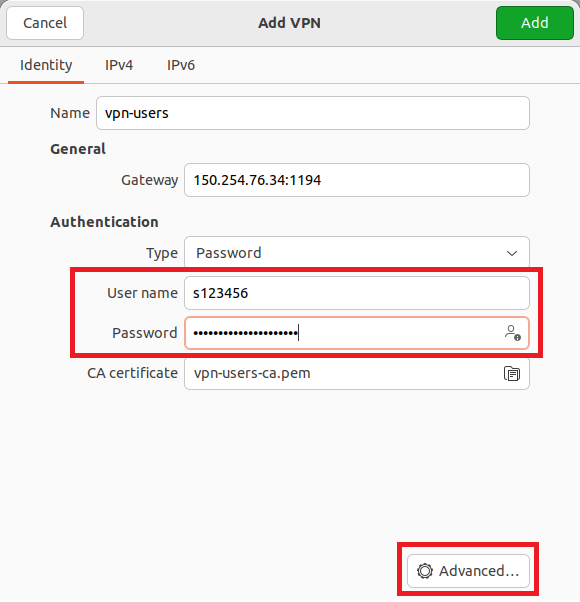
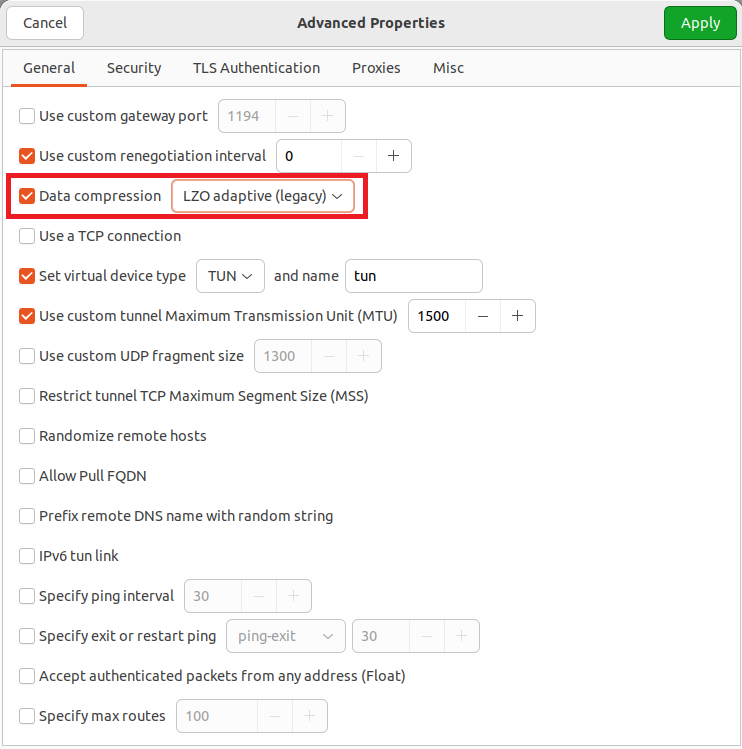
VPN packets are not routed outside of faculty's network, therefore limit use of VPN connection only for internal resources in the IPv4 submenu of routes settings: 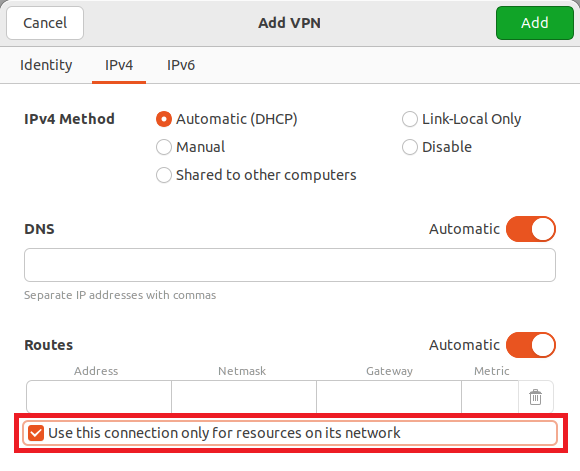
Similarly configure IPv6.
To launch the configured VPN connection use the network connection list: 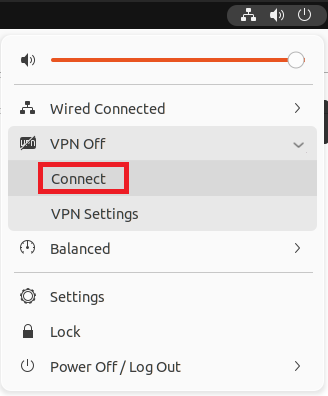
Some versions of NetworkManager have problems with saving advanced TLS configuration. This issue will prevent the VPN connection from properly working after the first successful connection is made.
The solution is to reconfugre the TLS Authentication section in the Advanced Properties:
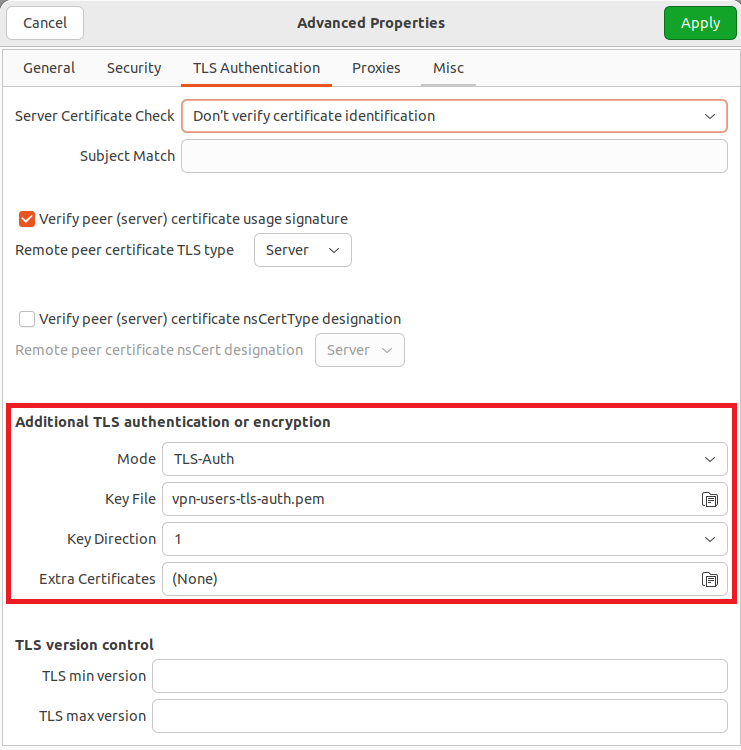
The key file is located in a hidden directory .cert/nm-openvpn located in the user's home directory. In order to show such folders you need to select the appropriate option from the context menu visible after right-clicking with your mouse on an empty space in the file view window.
Linux (without Network Manager) 12-06-2018 14:36
Linux without Network Manager
Configuration of wireless connection with faculty's network using program wpa_supplicant and DHCP client (not using Network Manager).
Method was tested on Fedora 8 distribution, but should work on every Linux (and even on different BSD flavors).
Before starting, make sure that newtwork adapter is working (usually it limit itself to copying firmware into appropiate place).
To connect this way to wireless network, root privileges are required. One should never log in to system as root. Root privileges are gained by entering in console
su -.
Installation of required programs
On majority of distributions wpa_supplicant is located in the installation drive. All that has to be done is installing it. Depending on a distribution, commands will look more-or-less like this (one of the following):
rpm -Uvh path_to_file/wpa_supplicant.rpm

yum install wpa_supplicant

apt-get install wpasupplicant
DHCP client is installed by default in all major distributions.
Network configuration
Create (or edit) wpa_supplicant configuration. By default it's the file /etc/wpa_supplicant/wpa_supplicant.conf, but if one pleases it can be put in arbitrary place. This file should have a following content:
ctrl_interface=/var/run/wpa_supplicant
ctrl_interface_group=wheel

network={
ssid="wmi"
key_mgmt=WPA-EAP
eap=PEAP
identity="s123456"
password="secret password"
}
Change accordingly lines identity i password.
Network initialization
To initialize a connection execute (as root) commands:
wpa_supplicant -B -i wlan0 -D wext -c /etc/wpa_supplicant/wpa_supplicant.conf

dhclient wlan0
In examples above we presume that network adaper is named wlan0 and that installed driver supports so-called wireless extensions (this applies to majority of newer drivers).
Some distributions may be missing dhclient program, other programs with the same functionality are dhcpcd or pump.
MacOS 12-06-2018 14:36
MacOS
This site describes how to configure wireless network in Mac OS X Snow Leopard (v.10.6.4).
Click on the network icon near the clock and then click on "wmi"

Make sure that "Remember this network" field is checked. Fill in your login and password from LABS domain (the same that you use to log in in computer laboratories). Click OK

Click "Show Certificate" and select "wmi.amu.edu.pl" on the list. Make sure that "Always trust wmi.amu.edu.pl" field is checked and click "Next"
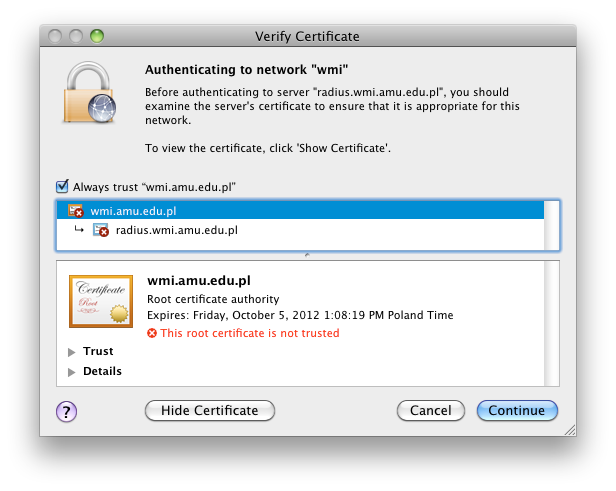
Fill in the password for account on your computer and click "OK"

Connection should be established

If you have trouble connecting despite providing valid credentials, your account might have been automatically locked due to too many invalid login attempts. Wait 2 minutes or visit the Laboratories Staff and ask for your account to be unlocked.
MacOS 12-06-2018 14:36
macOS
Configuration file needed for authentication is available in the WMI panel. Please download it using a browser other than Safari.
VPN Client for macOS is available at the project site. Please download the Stable version.
You need administrator rights to install and configure the VPN client.
Open the downloaded file and accept the message about installing an application downloaded from the Internet: 
After the installation is complete select I have configuration files: 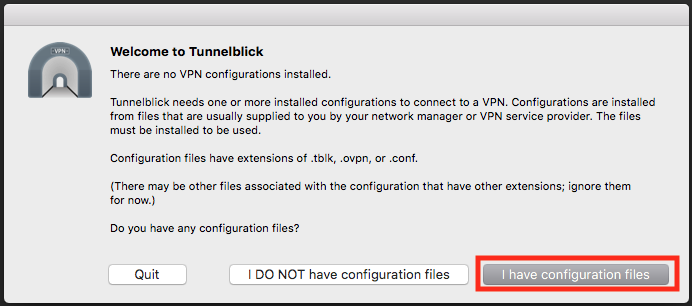
Double-click the file with .ovpn extension and select installation only for the current user: 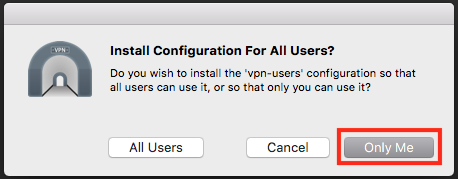
From the system tray icon's menu select VPN Details...: 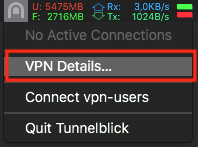
Clear the checkbox next to Check if the apparent public IP address changed after connecting and close the configuration window: 
From the system tray icon's menu select Connect vpn-users: 
Enter your credentials in the same way as in the computer laboratories: 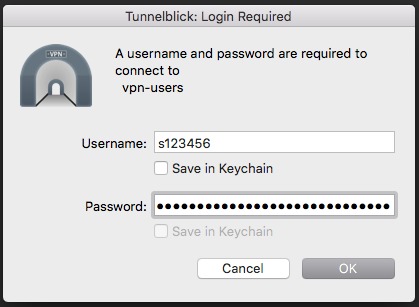
The connection state is visible in the upper right corner: 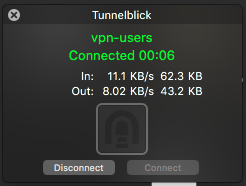
Mail 12-06-2018 14:36
Faculty's mail server is available for all employees and students having an account in the LABS domain. Full mail address is in form login@wmi.amu.edu.pl where login is a username in the LABS domain.
Faculty Mail and University Mail are not the same service. Former offers e-mail in domain
wmi.amu.edu.pland is available only for employees and students of our Faculty. Latter offers addresses inst.amu.edu.plandamu.edu.pldomains and is available for all students and employees of the University.
Mail receiving
Mail can be received in various ways.
WWW interface
Faculty's mail can be checked through WWW interface at https://poczta.wmi.amu.edu.pl/.
Mail clients
Mail can be checked with mail client, such as Mozilla Thunderbird. To be able to use such a program, configuration is necessary.
Receiving mail through IMAP
In account settings enter server name imap.wmi.amu.edu.pl, then username and password from the LABS domain. Select the SSL/TLS protocol and port 993.
Sending mail through SMTP
In account settings enter server name smtp.wmi.amu.edu.pl, necessarily turn on authorization and then enter credentials from the LABS domain. Select the SSL/TLS protocol and port 465.
Mail forwarding
If you prefer to use other mailbox than faculty's, but want to receive there all messages sent onto your student e-mail, you can set up mail forwarding.
Just insert address onto which you want your mail forwarded into file named .forward located in home directory. If you want to forward it to more than one address, place them in the same line, separating them with a coma. If copy of a message should remain in mailbox, add \s123456 (your login preceded with "\").
For example, if you'll write in .forward:
\s123456,xyzxyz@st.amu.edu.pl,login@drugiekonto.pl
messages will land in your mailbox and will be sent to two other addresses.
Mail filtering
Messages can be filtered by your mail client or by our mail server. If you want to use filtering on the server you should put Sieve (http://sieve.info/) rules in the file named .dovecot.sieve in yout home directory.
Mailing lists 12-06-2018 14:36
Mailing lists
For students and employees convenience mailing lists have been set up.
Messaging lists
Every list has an address in a form name@wmi.amu.edu.pl. To send a message to all peaople on a given list, just send it to list's address. If list is moderated, message will be awaiting acceptance - it may take some time. Undergraduate and master degree students lists, except Big Data lists, can receive e-mails only from addresses ending with amu.edu.pl.
Unsubscribing from list
Most of the mailing lists described on this page are used by the faculty to send important information and unsubscribing from them is not possible. Lists with unsubscribe option have a note about it in the description below. To unsubscribe from list you should send an e-mail with any subject and contents to the address name+unsubscribe@wmi.amu.edu.pl.
Faculty employee lists
- pracownicy - all faculty employees
- pracownicy-naukowi - research employees
- emerytowani - retired employees
- forum - employees discussion list (unsubscribtion possible)
PhD students
- doktoranci
Undergraduate and master degree students lists
- studenci - all students
- dzienni - full-time students
- zaoczni - extramural students
- di1i - studenci studiów stacjonarnych inżynierskich informatyki
- di1i - studenci pierwszego roku studiów stacjonarnych inżynierskich informatyki
- di2i - studenci drugiego roku studiów stacjonarnych inżynierskich informatyki
- di3i - studenci trzeciego roku studiów stacjonarnych inżynierskich informatyki
- di4i - studenci czwartego roku studiów stacjonarnych inżynierskich informatyki
- di1ik - studenci pierwszego roku studiów stacjonarnych inżynierskich informatyki kwantowej
- di2ik - studenci drugiego roku studiów stacjonarnych inżynierskich informatyki kwantowej
- di3ik - studenci trzeciego roku studiów stacjonarnych inżynierskich informatyki kwantowej
- di4ik - studenci czwartego roku studiów stacjonarnych inżynierskich informatyki kwantowej
- dl1m - studenci pierwszego roku studiów stacjonarnych licencjackich matematyki
- dl2m - studenci drugiego roku studiów stacjonarnych licencjackich matematyki
- dl3m - studenci trzeciego roku studiów stacjonarnych licencjackich matematyki
- dl1n - studenci pierwszego roku studiów stacjonarnych licencjackich nauczania matematyki i informatyki
- dl2n - studenci drugiego roku studiów stacjonarnych licencjackich nauczania matematyki i informatyki
- dl3n - studenci trzeciego roku studiów stacjonarnych licencjackich nauczania matematyki i informatyki
- dui - studenci studiów stacjonarnych uzupełniających informatyki
- du1i - studenci pierwszego roku studiów stacjonarnych uzupełniających informatyki
- du2i - studenci drugiego roku studiów stacjonarnych uzupełniających informatyki
- du1m - studenci pierwszego roku studiów stacjonarnych uzupełniających matematyki
- du2m - studenci drugiego roku studiów stacjonarnych uzupełniających matematyki
- du1n - studenci pierwszego roku studiów stacjonarnych uzupełniających nauczania matematyki i informatyki
- du2n - studenci drugiego roku studiów stacjonarnych uzupełniających nauczania matematyki i informatyki
- du1a - studenci pierwszego roku studiów stacjonarnych uzupełniających analizy i przetwarzania danych
- du2a - studenci drugiego roku studiów stacjonarnych uzupełniających analizy i przetwarzania danych
- zii - studenci studiów niestacjonarnych inżynierskich informatyki
- zi1i - studenci pierwszego roku studiów niestacjonarnych inżynierskich informatyki
- zi2i - studenci drugiego roku studiów niestacjonarnych inżynierskich informatyki
- zi3i - studenci trzeciego roku studiów niestacjonarnych inżynierskich informatyki
- zi4i - studenci czwartego roku studiów niestacjonarnych inżynierskich informatyki
- zlm - studenci studiów niestacjonarnych licencjackich matematyki
- zl1m - studenci pierwszego roku studiów niestacjonarnych licencjackich matematyki
- zl2m - studenci drugiego roku studiów niestacjonarnych licencjackich matematyki
- zl3m - studenci trzeciego roku studiów niestacjonarnych licencjackich matematyki
- zua - studenci studiów niestacjonarnych uzupełniających analizy i przetwarzania danych
- zu1a - studenci pierwszego roku studiów niestacjonarnych uzupełniających analizy i przetwarzania danych
- zu2a - studenci drugiego roku studiów niestacjonarnych uzupełniających analizy i przetwarzania danych
- zui - studenci studiów niestacjonarnych uzupełniających informatyki
- zu1i - studenci pierwszego roku studiów niestacjonarnych uzupełniających informatyki
- zu2i - studenci drugiego roku studiów niestacjonarnych uzupełniających informatyki
- zpinf - studenci studiów niestacjonarnych podyplomowych informatyki dla nauczycieli
- zpmat - studenci studiów niestacjonarnych podyplomowych matematyki
- zpkzi - studenci studiów podyplomowych kwalifikacyjnych z informatyki
- zpdn - studenci studiów podyplomowych doskonalących dla nauczycieli informatyki
- zpbd9 - studenci studiów niestacjonarnych podyplomowych Przetwarzanie danych - Big Data (start 2022Z)
Mailing lists regulations 12-06-2018 14:36
Mailing lists regulations
Regulations are available only in Polish.
Office 365 12-06-2018 14:36
Office 365
For students and employees of our Faculty Microsoft's Office 365 suite has been made available, which enables usage of the following apps through browser: Word Online, Excel Online, PowerPoint Online, OneNote Online as well as OneDrive cloud drive enabling storing 100GB of data for every employee.
Service is available at: https://www.office365.amu.edu.pl/.
Login method and respective services included in a suite are detailed below.
First login
Before the first use password change at https://panel.amu.edu.pl is necessary (people who have discrepancies in a mail login and panel login must pay attention for which account password is changed).
Password will be changed for all university's services (i.e. mail account, amurap, eduroam, Office365 etc.).
After logging into Panel, choose "Change password" from the left menu. Password requirements are given below form.
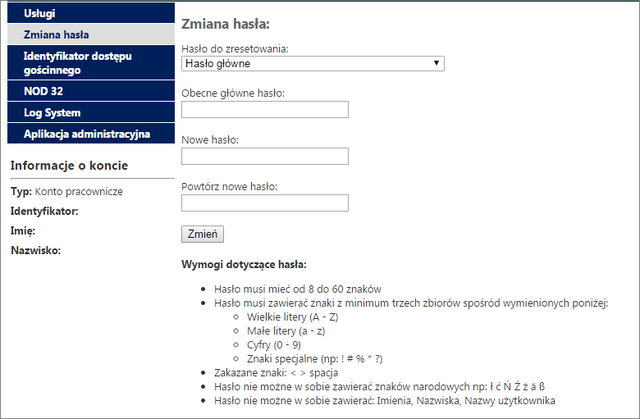
Next, go to: https://login.microsoftonline.com and log in using login in the @amu.edu.pl domain (for employees) or @st.amu.edu.pl (for students).
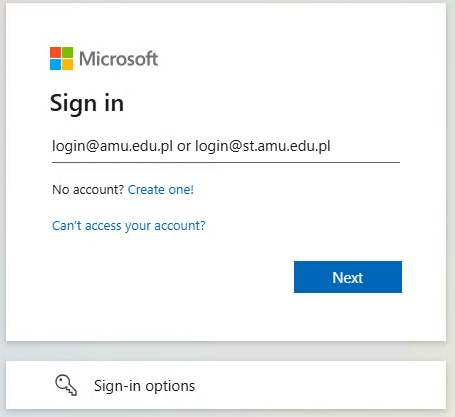
After login one can make use of Office365 suite.
Available services
Included in Office 365 are the following services:
- Outlook Online – e-mail (size of mailbox: 50GB),
- OneDrive – 1TB of cloud storage for every UAM student and employee,
- SharePoint Online – tool for creating own websites, e.g. project's,
- Office Online – Office suite in a "basic" version, launched in a browser,
- Office Apps - office suite intended for local computer installation.
Office suite applications enable creation, edition and real-time resource sharing to arbitrary people using PC, Mac or iOS, Android and Windows devices. As files are kept in the Internet, they can be shared to coworkers or people outside of organization at will. Files are kept in OneDrive, and can be shared from there.
Office Apps 12-06-2018 14:36
Microsoft Office Apps
Microsoft Office 365 ProPlus suite is available for Faculty's of Mathematics and Computer Science tutors and students.
License includes installation on 5 computers running Windows or macOS, 5 tablets (Android, iOS and Windows) and 5 smartphones (Android, iOS and Windows).
Contrary to the Microsoft Azure Dev Tools for Teaching license expires with loss of student/tutor status.
Installation is to be initiated by logging into university's Office 365 portal on a destination device using website https://aka.ms/office-install
In case of the first login follow UAM IT Center instructions:
In case of issues with logging into Office 365, contact helpdesk@amu.edu.pl. In the mail content (aside from issue's description) write also:
- Error message
- Login ID in an @st.amu.edu.pl domain (students) or in @amu.edu.pl domain (employees)
After logging in press Install and more in the top right page corner and select Install Microsoft 365 Apps:
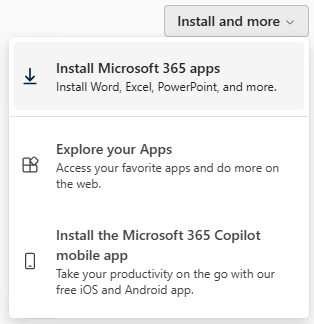
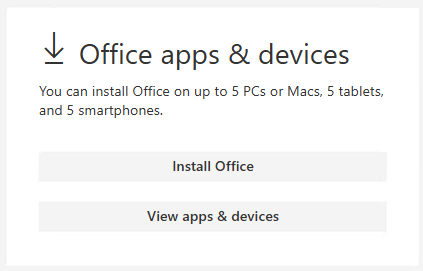
From the central area of the page select Install Office. This area also provides management of device licenses.
Installation files downloaded from Office 365 are unique for every user and shouldn't be shared with third parties.
PSNC Grant 12-06-2018 14:36
PSNC Grant
The Poznan Supercomputing and Networking Center (PSNC) offers access to computing systems equipped with the most modern data storage systems, access networks and rich scientific software. Resources are granted for people conducting scientific research on the basis of a computational grant application.
Procedure
To receive a grant you must:
- Register in PSNC
- After logging in, fill out an electronic version of the grant application.
- The printed version of the application must be signed by a university mentor or supervisor - without this, the application will not be processed.
The application should then be sent to:
Poznańskie Centrum Superkomputerowo-Sieciowe
ul. Jana Pawła II 10
61-139 Poznań
Applications are usually processed within 14 days, although time may be extended.
Computing Grant can be granted for up to 3 years.
Access to machines
After accepting the application, you get access to the cluster via SSH. To use this connection from Windows you need to use:
- Connecting to the machine via SSH (terminal)-
PuTTY - Transferring files to the machine -
WinSCP,FileZilla
If you are using a Linux machine, the only command you have to use is: ssh <host>
To perform some calculations you need to use the special queue system SLURM - its operation is reduced to a few commands in the console.
More info
- PSNC - Basic info page
- PSNC - Page with Application form
- PSNC - User's Guide
Pioneer Consortium 12-06-2018 14:36
The Pioneer Consortium
The PIONIER Consortium is an organization whose goal is to create and develop the Polish academic computer network PIONIER with high throughput, capable of connecting computing centers scattered throughout Poland to process large amounts of data and to provide participating academic centers with fast communication with foreign scientific and commercial networks.
MAN-HA
The aim of the MAN-HA project is to integrate selected services available in the PIONIER network, and to develop new services with the following characteristics: increased reliability and security, easy access, support for federation mechanisms, work in a cloud environment. The MAN-HA project is implemented by MAN (Metropolitan Area Network) and KDM (High Performance Computing) units, and the results are available for universities, R&D units, institutes of the Polish Academy of Sciences, as well as students, business entities conducting research, and the ICT society.
The Pioneer Network has created a public cloud with free services that can be used by students and researchers. As part of these services, users have remote access to a wide range of applications and the ability to create and run virtual machines.
Pioneer Cloud
Access to the Pionier Cloud platform (which is an implementation of the MAN-HA project) is via https://cloud.pionier.net.pl. During registration, you need to:
- in the first step select the city
Poznań. - in the field Uczelnia/jednostka select
Adam Mickiewicz University. - Use e-mail in domain `@st.amu.edu.pl' to register.
- in the Dodatkowe informacje field, check the
studentbox.
Pionier Cloud Services
Pioner Cloud offers acces to:
- Virtual machines
- Apps in cloud
- Databases SQL
- Microsoft Office 365
Note: The Pioneer Cloud service is not provided by WMI Computer Labs. Any problems with this service should be reported directly to the platform by selecting the Claims option in the Menu.
Machines
After activating the account (it takes from a few hours to a few days) we can log on to the platform. In the Services tab we can select Virtual Machines in the Menu, where we can create and run a virtual machine with the desired parameters.
Cloud users get the opportunity to set up virtual machines running in high availability mode. Application and virtual machine users get the ability to copy their files to virtual machines directly from their computer. .
Access to machines
Windows -> Linux (SSH)
- Connecting to a machine via SSH (terminal) -
PuTTY - Transfer files to the machine -
WinSCP,FileZilla
Linux -> Linux (SSH)
ssh <remote_address>- connct to te machinescp- copy files to the machine
Windows -> Windows (via RDP)
- key
Windows + R - search phrase
mstsc - specify the machine and user address in the form
<remote_address>\<user>
Linux -> Windows (via RDP)
- download package called
remmina - specify the machine and user address in the form
<remote_address>\<user>
Additional information
- PIONIER online, Pioneer Consortium,
- Wikipedia, Pionier (wikipedia),
- MAN-HA, Research cloud,
- MAN-HA, Discs and computers in cloud.
Poligon 12-06-2018 14:36
Poligon
Poligon is a public space located on the local disk. Its content may vary and it depends on the computer you are logged in to.
In Laboratories, the partition is marked with the letter P:\ on Windows and mounted as /media/poligon on Linux.
Data stored on Poligon partitions is deleted during shutdown/restart, and cannot be recovered. It is not recommended to store private files and important data on them.
Project accounts 12-06-2018 14:36
Project accounts
It is possible to create additional LABS domain accounts, that can be shared with other users to use for student's projects. To acquire such an account, create a ticket in helpdesk containing:
- non-trivial proposed account name
- till when account should be usable
- why do you need project account
- additional technologies with version numbers, which are to be accessible or created (e.g PHP, Django, Wordpress, .NET)
- list student's ID numbers which are to have access to an account
Access through SSH/SCP/SFTP
Project accounts are available only through SSH/SCP/SFTP. Use appropiate SFTP client (e.g. WinSCP on Windows) to connect to the server, which was mentioned in info about account creation. As a login use project account name. Next enter Principal, which is a login of user privileged to use a project account and then user's password.
SSH on hosting server has option
ChallengeResponseAuthenticationenabled. Some programs (such as FileZilla) may require additional configuration to login correctly.
Proxmox 12-06-2018 14:36
Proxmox
Proxmox is a tool for providing virtualization environments used to run virtual machines.
Access to a machine
WWW interface is available only from faculty's network or through VPN
System is available at https://cloud.wmi.amu.edu.pl. Login takes place using domain authentication (as in laboratories):
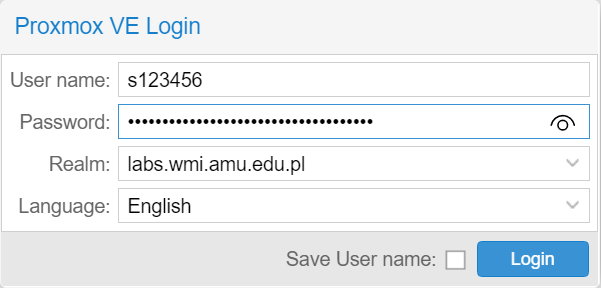
To simplify work change view to Folder View:

Basic operations
Launching
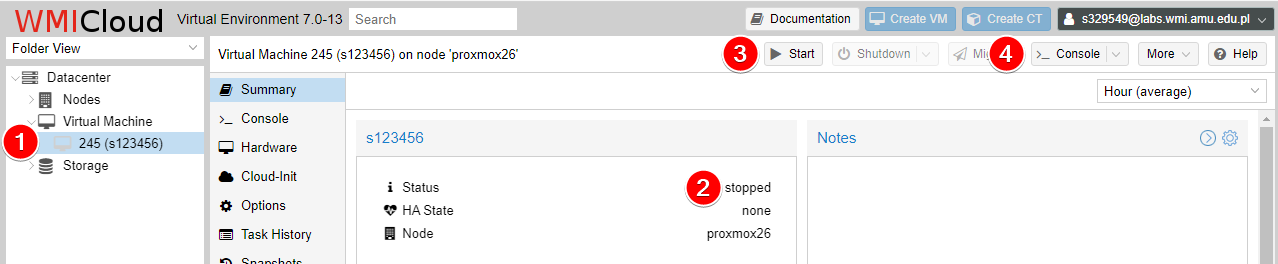
To launch a machine select it from available list (1.) and choose Start (3.).
Console is provided for a machine, allowing for interactions. To launch a console select machine from availabe list (1.) and choose Console 4..
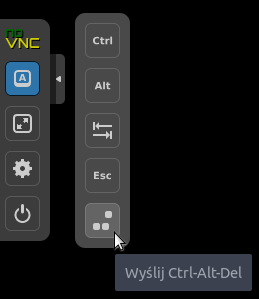
noVNC console allows sending key combinations which normally cannot be called in user's programs, like Ctrl+Alt+Delete:
Mounted ISO image change
To change ISO image mounted by default:

- select a machine from list
- select menu Hardware
- select a drive to edit
- select Edit and choose a new image
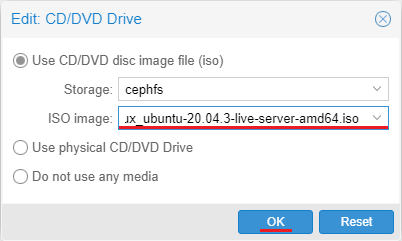
In case of an image missing from the list create a ticket in a helpdesk.
Proxy 12-06-2018 14:36
Proxy
On our Faculty we give access to a proxy/w3cache server. Besides WWW acceleration it enables access from outside the network to faculty's resources and those, to which only University has access to, i.e. various libraries.
Service is available after sonnecting to faculty's network through VPN.
Settings:
- host:
w3cache-vpn.wmi.amu.edu.pl - port: 3128
Relational database 12-06-2018 14:36
MSSQL Server relational databases
On our Faculty Microsoft SQL Server is available for users.
Microsoft SQL Server Management Studio is a good tool for interactive work and it is installed on every computer in the laboratories.
Microsoft SQL Server 2022 Enterprise in laboratories
Every user has a possibility to use for testing purposes a local instance of SQL Server Enterprise, which is installed on every computer in the laboratories.
By default server is disconnected. During SQL Management Studio startup service is automatically launched. Beside that, located in a Start Menu are shortcuts serving for manual management of server's state.
Connecting to a server
- Server name: localhost
- Authentication: Windows Authentication
Remember that databases created on a given computer are located only there and are deleted everyday.
Database deletion
Databases on a local SQL sever are deleted by the end of a day.
Microsoft SQL Server 2017 as an independent server
Users have a possibility of obtaining a database on a faculty's MSSQL server.
Database can be obtained by any user or project group after submitting a ticket at helpdesk containing:
- domain login of person responsible
- proposed, non-trivial database name (example of a bad name: pro2010)
- database access mode: SQL authentication (username/password) or Windows (only from computers in the LABS domain)
- if database is to exist longer than one semester, proposed database's lifespan
- possibly domain logins of remaining members of project team
Connecting to the relational database using Microsoft SQL Server Management Studio
- Server type: Database Engine
- Server name: mssql-2017.labs.wmi.amu.edu.pl
- Authentication: Windows Authentication
Access to server is possible only from a computer in the LABS domain. Outside of a Faculty access may be gained using a terminal server or connecting via VPN.
Databases deletion
Databases will be deleted after expiration date. By default this term amounts to one semester. There is a possibility of extending it. Before deletion, person responsible for a databasse will be notified by mail.
Remote labs 12-06-2018 14:36
Remote labs
Please read this instruction in its entirety.
All users of the LABS domain are able to connect remotely to computers located in the FMCS Computer Laboratories.
The system is available at https://remote-labs.wmi.amu.edu.pl/.
To log in to the system use your LABS domain credentials.

Connection selection
After logging in you can connect to different services:

- Linux SSH Server - equivalent to SSH access
- Linux Student Workstations - a computer in the laboratories running Linux
- Windows Student Workstations - a computer in the laboratories running Windows
After selecting a service you'll be presented with a desktop environment or a command prompt (in case of SSH access)
Ending work
Logging out of the remote-labs system is not equivalent to logging out of the system you connected to.
In order to avoid potential problems we advice you to end your work in a proper manner, depending on the operating system:
Windows:

Linux:
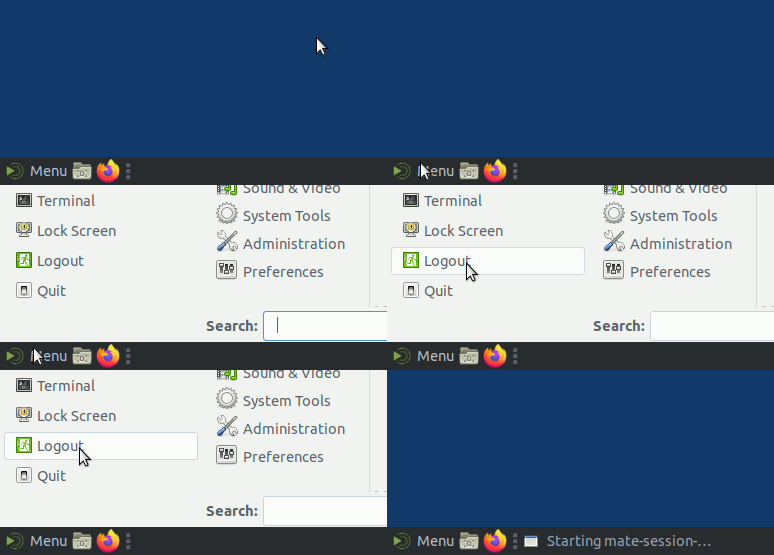
The control interface
After connecting to a service you can open the control interface by simultaneously pressing Ctrl+Shift+Alt. This allows you to transfer files from or to your home directory, to disconnect the session and and to log off from the remote-labs system.
Using multiple sessions
It's possible to connect to multiple services simultaneously by starting the control interface (Ctrl+Shift+Alt) and selecting the new connection:

In order to switch between services use the interface located in the lower right corner of the browser:
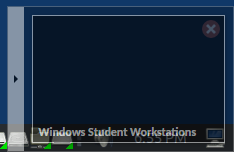
By default you can open up to one connection to each service. Connecting from multiple computers at the same time is not supported.
Downloading files
In order to download a file from the remote computer start the control interface (Ctrl+Shift+Alt), select your home directory and double-click the desired file. Your browser will then download the file:

Uploading files
In order to upload a file from your computer to the remote one start the control interface (Ctrl+Shift+Alt), select your home directory, navigate to the target folder, click 'Upload Files' and select the file to upload. When uploading to the Desktop folder you might not see the file immediately - refresh the desktop in the remote computer to fix this.
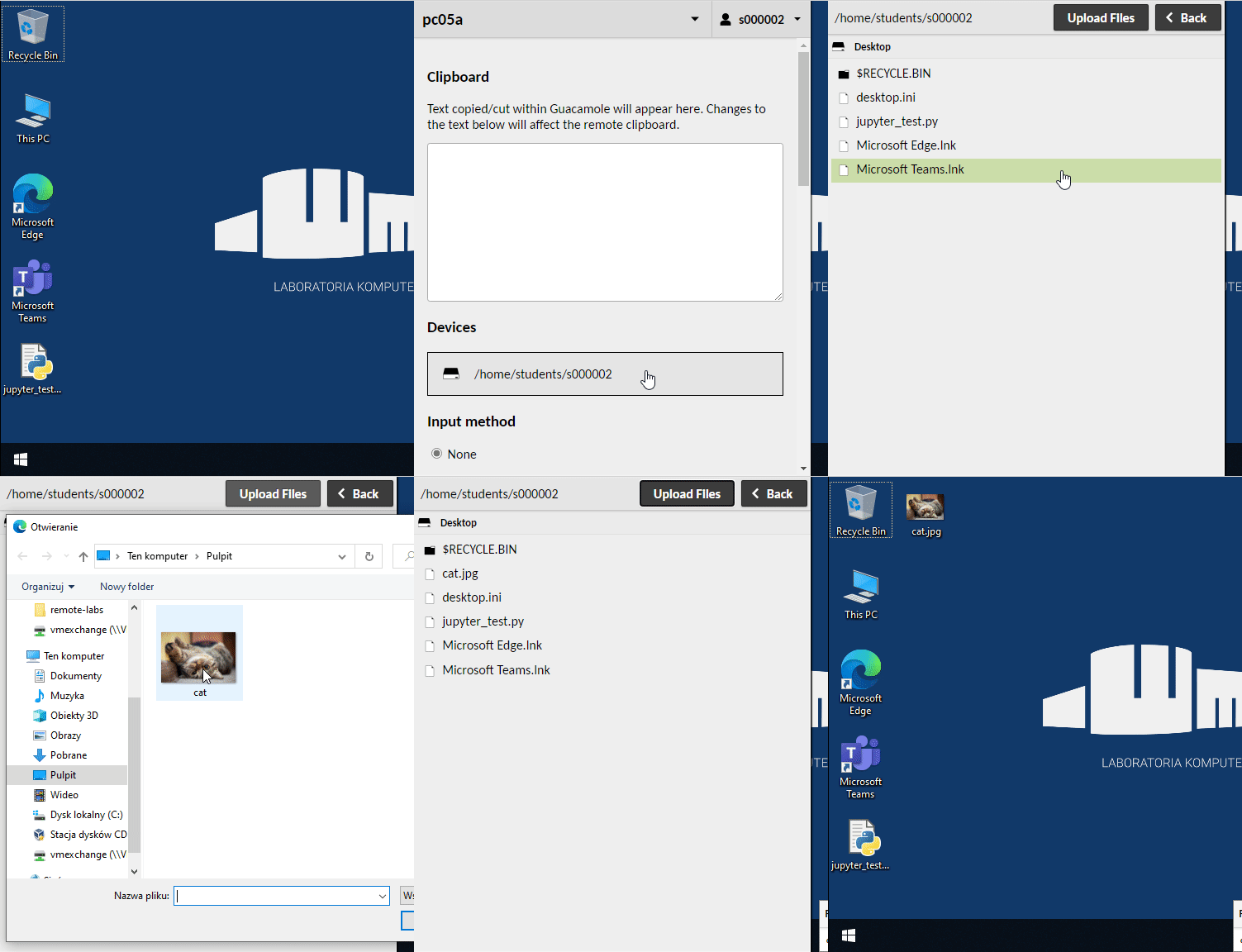
Potential problems
When reporting a problem with the remote-labs system please provide the following information:
- exact date and hour of the occurrence
- the browser and operating system used
- a complete description of the problem, a step-by-step instruction will be greatly appreciated
Connection Error

When encountering the above error please allow for at least three automatic reconnection attempts. This will take around a minute.
The system implements power saving (not all computers are in standby, and sometimes new ones need to be started/woken up when load surges) and automatic repair (many failed connection attempts will cause the offending computer to be removed from the connection pool).
If you're unable to connect after a minute please contact us.
Performance problems
We strongly advise using wired connections for this system, if possible.
Resources 12-06-2018 14:36
Resources
It's a shared resource located on a Files server (\\files.wmi.amu.edu.pl\\Resources), where instructors share with students course materials.
In laboratories this network share is mapped as disk H: on Windows and mounted as /media/username/resources on Linux.
For students it is available only with read permissions.
Resources for projects 12-06-2018 14:36
Resources for projects
Students and Faculty members working on projects have acces to following Faculty's services:
Additionally, we can recommend external services:
Scanning 12-06-2018 14:36
Scanning
Flatbed scanner A4 is available in room D1.
Flatbed scanner A3 is available in a library.
Automatic scanner A4 with e-mail sending option is available on a corridor A1 next to room A1-26.
Term 12-06-2018 14:36
Term
To connect from outside of the faculty's network VPN is necessary.
Login
To connect on Windows one may use mstsc app (available through Start -> Run... -> mstsc or Start -> Programs -> Accessories -> Remote Desktop Connection) entering term.wmi.amu.edu.pl into field Computer:. In case of problems precede login with LABS\ string sequence.
On Linux one may use remmina or xfreerdp programs. Then log in using the same credentials as in case of laboratories login. In case of problems set LABS as domain name or precede login with LABS\\ string sequence if you are running from command line.
On macOS official Microsoft Remote Desktop application is required.
Disconnecting without logout
Disconnected session will be active for at most 30 minutes - therefore it is possible to leave running programs and disconnect with a server and then reconnect e.g. from other computer.
To disconnect from remote session without logout - press "x" on a menu appearing on top of the screen or from Start Menu select arrow next to Log off and then Disconnect.
Known issues
Concurrent user limit
To ensure system stability, the number of concurrent users of the service is limited. The following message indicates a lack of space on the server at the time of connection:

Time Series Modelling 4
Time Series Modelling can be run on a given computer only by a single user. Launching it by another user at the same time causes incorrect operation on both instances.
Because of that TSM is incompatible with remote desktops and will not be available on the term server.
Visual Studio Code
Visual Studio Code can be run on a given computer only by a single user.
Because of that VSCode is incompatible with remote desktops and will not be available on the term server.
Available software
| Name | Version |
|---|---|
| 7-Zip | 26.04 |
| Adobe Reader DC | 26.002.22031 |
| Android SDK | 2025-08-28 |
| Android Studio | 2025-08-28 |
| Apache ant | 1.10.18 |
| Astah* Community | 6.9.0 |
| AWS Command Line Interface v2 | 2.28.16.0 |
| Baltie PL | 3.0.71.121 |
| Bouml | 7.11.patch3 |
| Calibre | 8.9.0 |
| Compasses and Ruler | 20150810 |
| Cisco Packet Tracer | 8.2.2 |
| Classic Shell | 4.4.198 |
| CLion | 2026.2.2 |
| CMake | 4.4.3 |
| Code::Blocks | 25.03 |
| ConTEXT | 0.98.6 |
| Convert | 4.10 |
| DataGrip | 2026.2.5 |
| DAX Studio | 3.3.3.1117 |
| DBeaver Community | 26.2.0 |
| Dev-C++ | 5.11 |
| Dia | 0.97.2 |
| DjVuLibre | 3.5.27+4.11 |
| Eclipse | 2026-09-14 |
| Emacs | 31.1 |
| eXe | 2.9 |
| FileZilla | 3.71.1 |
| Mozilla Firefox | 158.0 |
| FreeCommander | 2026.0.0.941 |
| Gadwin PrintScreen | 5.4.2.0 |
| Geany | 2.1 |
| Geany Plugins | 2.1 |
| GeoGebra | 6.0.894.3 |
| GeoNEXT | 1.74 |
| GPL GhostScript | 9.56.1 |
| GIMP | 3.2.6 |
| Git | 2.56.0.2 |
| GnuPlot | 6.0.1 |
| GOLD Parser Builder | 5.2.0 |
| Google Chrome Enterprise | 155.0.8059.85 |
| gp/Pari | 2.17.2 |
| Gpg4win | 5.1.0 |
| Gradle | 9.7.1 |
| gretl | 2025b |
| GSView | 5.0 |
| Haskell Platform | 8.6.5 |
| Heroku CLI | 10.0.0 |
| HxD | 1.7.7.0 |
| Inkscape | 1.2.1 |
| IntelliJ IDEA | 2026.2.2 |
| IrfanView | 4.76 |
| Java SE Development Kit | 21.0.12.10001 |
| Java SE Runtime Environment | 21.0.12.10001 |
| JavaBlock | 0.6.1 |
| JMulTi | 4.24 |
| Julia | 1.10.10 |
| KeePassXC | 2.7.12 |
| L-py | 2.0.0 |
| LaTeX2RTF | 2.3.18 |
| Lazarus | 4.8 |
| Libre Office PL | 26.8.0.3 |
| Apache Maven | 3.9.16 |
| Maxima | 5.48.1 |
| Microsoft DirectX SDK | 9.29.1962.0 |
| Microsoft Edge Enterprise | 155.0.4283.60 |
| Microsoft Mathematics | 4.0 |
| Microsoft OneDrive | 22.151.717.1 |
| Microsoft PowerBI Desktop | 2.157.1354.0 |
| Microsoft SQL Server Enterprise | 2022.160.4305.5 |
| Microsoft SQL Server Management Studio | 21.5.14 |
| Microsoft SQL Server Report Builder | 15.1.30001.02 |
| Microsoft Teams 2.0 | 26260.1701.5139.3736 |
| Microsoft Visual Studio 2022 Base | 17.10 |
| OpenCV - Visual Studio 2022 | 4.12.0 |
| SAP Crystal Reports for Visual Studio 2022 | 13.0.40.5789 |
| Microsoft Visual Studio 2022 SSDT IS | 2.2 |
| Microsoft Visual Studio 2022 SSDT VSIX AS | 4.0.0 |
| Microsoft Visual Studio 2022 SSDT VSIX RS | 4.0.0 |
| Microsoft Visual Studio 2022 Update | 17.14.40 |
| Miniforge (conda-forge) | 26.7.2-0 |
| MongoDB Compass Isolated Edition | 1.50.0 |
| MongoDB Shell | 2.10.0 |
| MongoDB Databse Tools | 100.18.0 |
| MSYS2 MinGW64 | 2026-09-12 |
| MySQL Workbench | 26.7.0 |
| NetBeans | 31.0 |
| Neuroph Studio | 2.98 |
| node.js | 24.22.0 |
| Notepad++ | 8.9.8.1 |
| Octave | 11.3.0 |
| ODBC Connector - DataBricks | 2.12.1.1001 |
| ODBC Connector - Apache Hive | 2.6.9.1009 |
| ODBC Connector - MariaDB | 3.2.9 |
| ODBC Connector - Microsoft SQL Server | 18.7.1.1 |
| ODBC Connector - MySQL | 26.7.1 |
| ODBC Connector - PostgreSQL | 18.00.0003 |
| ODBC Connector - Amazon Redshift | 1.6.3.1008 |
| OpenBoard | 1.7.3 |
| OpenSSL | 4.0.3 |
| Opera | 137.0.6036.63 |
| Oracle Datamodeler | 24.3.1.351 |
| Orca | 1.3.1.1163 |
| OxMetrics Console 6 | 6.21 |
| OxMetrics 6 package G@RCH | 6.1 |
| OxMetrics 6 package GnuDraw | 6 |
| paint.net | 5.1.12 |
| PDF-XChange Editor | 10.3.1.387 |
| PDFill PDF Tools (Free) | 15.0 |
| pgAdmin 4 | 9.17 |
| PHP | 8.5.11 |
| PowerShell | 7.6.7 |
| PSPad | 5.0.7 |
| PuTTY | 0.85 |
| PyCharm | 2026.2.2 |
| Python | 3.13.15 |
| Qt MinGW Creator | 6.8.3 |
| Quarto | 1.4.537 |
| R | 4.6.1 |
| RStudio | 2026.09.0-174 |
| Rtools | 4.5 |
| Ruby | 3.4.5-1 |
| Scala | 3.3.6 |
| Scilab | 2025.1.0 |
| Scratch | 3.29.1 |
| Sigil | 2.6.0 |
| Slack | 4.47.69.0 |
| Statistica 13 PL | 13.3.721.1 |
| SumatraPDF | 3.6.1 |
| SWI-Prolog | 10.0.2 |
| SWI-Prolog Editor | 2021-08-29 |
| Tabular Editor | 2.25.0 |
| TeX Live | 2026-09-12 |
| Texmaker | 6.0.2 |
| TeXnicCenter | 2.02 |
| TeXstudio | 4.9.8 |
| Mozilla Thunderbird | 153.5.0 |
| TikzEdt | 0.2.3 |
| Tortoise Git | 2.18.0.1 |
| ViewPorter | 2.3.7 |
| vim | 9.2.0699 |
| VirtualBox | 7.2.20 |
| VideoLAN Client | 3.0.24 |
| WebStorm | 2026.2.2 |
| Debugging Tools for Windows (WinDbg) | 10.1.26100.7705 |
| WinMerge | 2.16.50.2 |
| WinPlot | 1.55.0.1 |
| WinSCP | 6.7 |
| Wireshark | 4.6.9 |
| Wolfram Player | 14.3.0 |
| x2go Client | 4.1.2.0-2018.06.22 |
| Xerte | 2.18 |
| Microsoft XML Notepad | 2007 |
| yEd | 3.24 |
It is possible to request additional software/libraries/updates to install on a server - to do so, contact us.
Terminal servers 12-06-2018 14:36
Terminal servers
LABS domain users have a possibility of remote connection with following terminal servers:
VPN 12-06-2018 14:36
VPN
VPN (Virtual Private Network) allows for a safe access to WMI's network from outside. By using the VPN, students and staff of the faculty can access their virtual machines, proxy and other services.
Configuration
Virtual machine for service hosting 12-06-2018 14:36
Virtual machine
We offer an option to launch a virtual machine for a grup of students realizing project as a part of classes at a Faculty if they need a specific configuration or additional services inaccessible on faculty's servers.
Machines are running in a Proxmox environment. Every new machine has an empty drive, so you can install any operating system. Because of hardware limitations (RAM) there is no possibility of running Windows on virtual machines.
Machine's parameters are:
- 1GB operational memory
- 20GB disk space
To obtain a virtual machine, create a ticket in helpdesk. Request should contain following informations:
- to which project as a part of which classes will machine be used
- why services available to all students are not sufficient
- till when will machine be needed
- contact informations of person responsible (name, surname, e-mail)
- if machine is to be accessible from outside of the Faculty, specifying ports to be allowed on firewall is necessary
- what operating system will be running on a machine
Rules of allowing traffic on a firewall:
- there is no possibility of opening port 25,
- access to databases and other services available for restricted user's group (administrators) whould take place through VPN,
- if a service is available for an unlimited amount of users (clients) then probably it's qualified for access e.g. on ports 80, 443.
Moreover, services using faculty's LDAP server for authentication should assure adequate transmission encryption, e.g. enforce https.
Ater machine creation you will receive an e-mail from administrators with instructions on how to connect with a machine.
WMI Panel 12-06-2018 14:36
WMI Panel
To ease management of services available at the Faculty, students and employees have acces to WMI Panel. It is available at https://panel.wmi.amu.edu.pl.
To log in use credentials from the LABS domain - same as you use in laboratories.
After logging in Panel enables i.a. password change, MySQL database creation and VPN certificates download.
Windows 12-06-2018 14:36
Windows
You need administrator rights for the VPN client configuration.
OpenVPN Community for Windows is available at the project site. Download and install it.
Download the configuration file required for authorization from the WMI panel.
After OpenVPN Community has been installed double-click on the downloaded authorization file vpn-users.ovpn and confirm that you want to import it. A system message will be displayed on successful import.
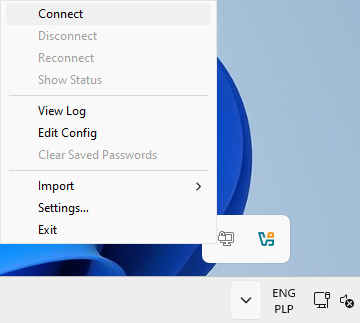
Start OpenVPN GUI if it wasn't automatically started. The program icon will appear in the system tray, next to the clock.
The program icon in the system tray may be hidden.
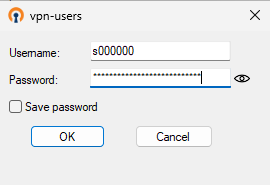
To connect to the Faculty, right-click on the program icon, press Connect and provide your credentials (use your login and password from the LABS domain - the same which you use to log in computer laboratories):
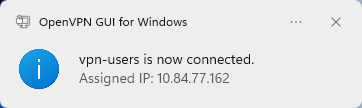
If connection was succesfuly estabilished, a pop-up with the assigned IP should appear:
Windows - Connect 12-06-2018 14:36
Windows - OpenVPN Connect
OpenVPN Client for Windows is available at the project site.
Instructions for previous versions of OpenVPN can be found here.
You need administrator rights to install OpenVPN.
During installation system could ask you Would you like to install this…. It's installation of virtual network interface card, that is needed to VPN right functioning.
The configuration file required for authorization can be found in the WMI panel.
Run the OpenVPN Connect program and follow the instructions below.
Select File in the upper right corner.
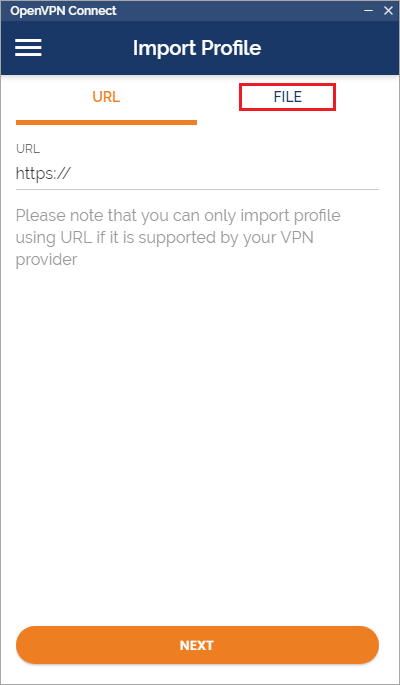
Select Browse and find the configuration file.

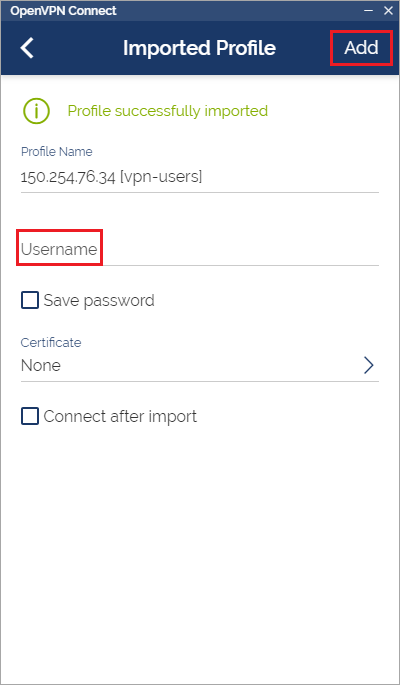
Enter the username in the Username field and then select Add.
Expand the list in the upper left corner and select Settings.
Find the Allow Compression section and select Downlink only.

Return to the profile screen and turn on the previously added one.
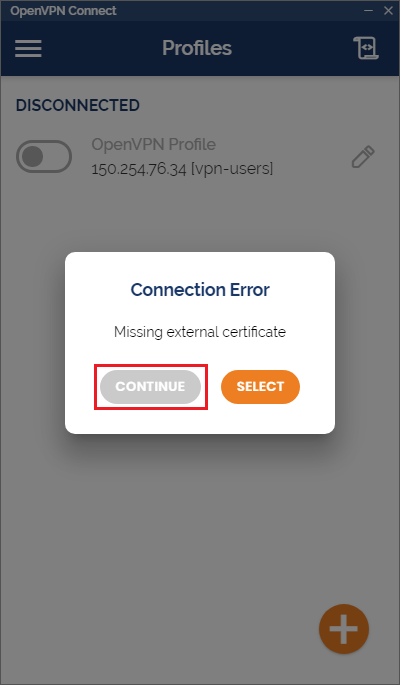
Enter the password and choose Continue during the certificate prompt.
Windows Phone 12-06-2018 14:36
Windows Phone
Description of wireless network configuration on Windows Phone 8.1.
Open Start Menu and choose Settings:

Choose Wi-Fi:
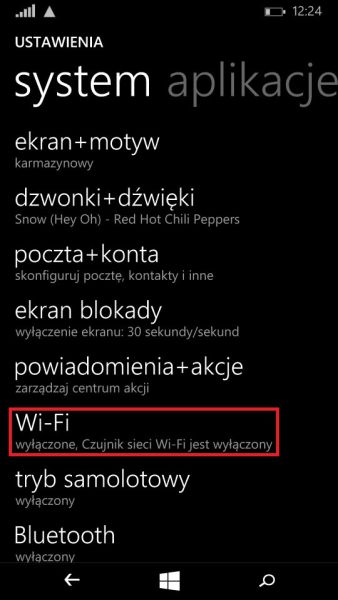
Turn on Wi-Fi and choose
wminetwork:
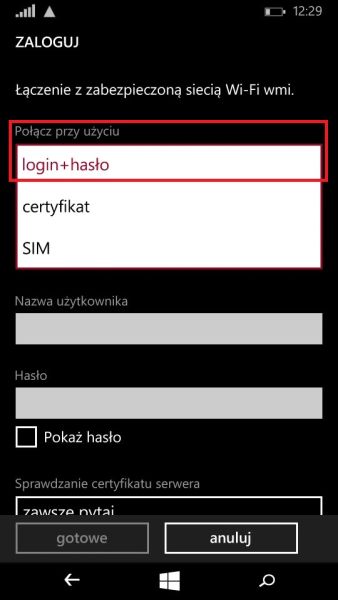
From Connect using choose login+password:
Enter your credentials from the
LABSdomain (same as to login in laboratories):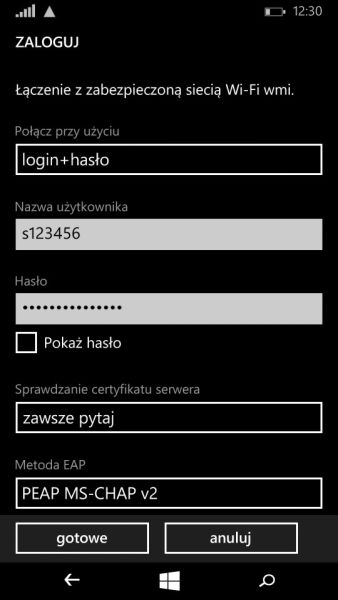
From Checking server certificate menu choose always ask:

From EAP method choose
PEAP MS-CHAP v2: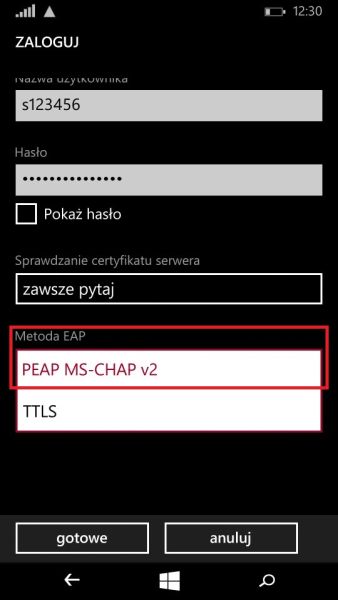
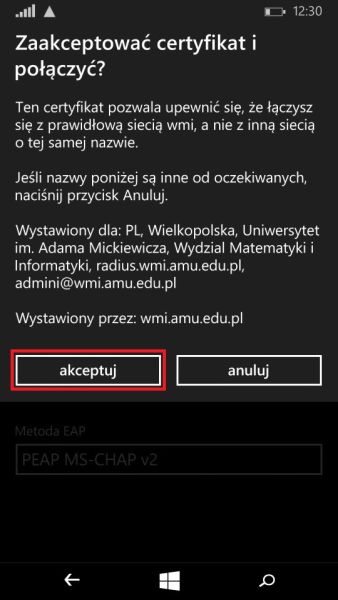
Accept a certificate:
Wireless network 12-06-2018 14:36
Wireless network
There is a wireless network available at our Faculty. You can't connect anonymously, additional configuration is needed.
Students have access to the Eduroam network.
Connection parameters
wmi network
| Network name (SSID) | wmi |
| Security type | WPA2-Enterprise |
| Data encryption | CCMP (AES) |
| EAP type | PEAP |
| Authentication Method | EAP-MSCHAP v2 |
| Logon data | LABS domain login and password |
| Certificate | WMI_cacert.cer |
Connection configuration
PostgreSQL 12-06-2018 14:35
PostgreSQL
PostgreSQL access
To gain access to PostgreSQL, contact us.
Database is available at psql.wmi.amu.edu.pl. Database's name is identical as username. Password will be sent by mail with information about creating a database.
phpPgAdmin is available at https://pgadmin.wmi.amu.edu.pl.
Databases use different credentials than standard user accounts.
Database connection is possible only from a computer in the LABS domain. Outside of a Faculty access may be gained using a terminal server or connecting via VPN.
Development Android 12-06-2018 14:35
Development Android
Windows
Android SDK for Android version 32 and Android Studio are installed on Windows.
Notes
Because of incompatibility of the Android SDK, emulator must be run from disk P:
Because of incompatibility of the Android Studio, application project must be located on disk P:
Project preparation
It is best to keep project in Git repository. It is possible to create a local repository in home directory (as a subfolder of disk J:) or on faculty's server.
After cloning repository onto disk P:\ create project in it using Android Studio and commit all changes.
Emulator preparation
Every time after logging in to a computer user must execute a command wmi_mkandroid from command prompt (cmd.exe). This will create emulator and AVD device compatible with our infrastructure. It's files are located in P:\android_[login] and will be removed on system's shutdown.
Project launching
After opening a project in Android Studio, first start an emulator by going to Tools -> Device Manager -> Virtual and selecting green "play" button. After emulator displays home screen, it is possible to start a project in it.
Full procedure
Issues
Waiting for target device to come online
If after launching a project Android Studio shows message Waiting for target device to come online regardless of running emulator, one should:
- close an emulator
- restart emulator by Tools -> Device Manager -> Virtual and choosing "play"
- wait for home screen
- launch project again on a correct device (listed under Connected devices)
If that doesn't help, close emulator and Android Studio and again execute a command wmi_mkandroid in cmd.exe.
Other
First step in troubleshooting issues with Android Studio and SDK not described in this article should be deleting:
j:.android
j:.AndroidStudio2.3
c:\users\[login].android
c:\users\[login].emulator_console_auth_token
Linux
Android SDK for Android version 32 and Android Studio are installed on Linux.
Notes
Because of incompatibility of Android SDK, emulator must be run from local disk (/media/poligon)
Emulator preparation
Every time after logging in to a computer user must launch Android Studio from system menu or execute a command wmi_mkandroid from terminal in case of different method of Android Studio launching. This will create emulator and AVD device compatible with our infrastructure. It's files are located in /media/poligon/android_[login] and will be removed on system's shutdown.
Issues
In case of issues one should:
- close emulator
- shut down Android Studio
- remove AVD by executing in terminal command /opt/nfs/android-sdk/tools/bin/avdmanager delete avd --name Nexus_5X
- remove directories /home/students/LOGIN/.android and /home/students/LOGIN/.AndroidStudio*
Fingerprint 12-06-2018 14:35
Fingerprint
For students and employees alike, three servers are available to log in to through SSH. Fingerprints of those public keys are as follows:
| Serwer | MD5 (PuTTY, OpenSSH <6.8) | SHA-256 (OpenSSH 6.8<) |
|---|---|---|
| hosting | b1:c0:35:51:5f:81:60:14:ce:2c:04:04:77:19:b7:1f | SHA256:2ptsY+BcOMTG/0Xp79hh1R5lDpue6hwK/IjB8ZGrKik |
| LTS RSA | 32:60:75:13:28:a1:5d:00:cc:6f:a5:c7:eb:5d:05:76 | SHA256:SHMDPIYNUgxP7TEyOaq4fwJ5UU5TS3xu7KlOWwmOiWI |
| LTS ECDSA | 31:2a:7d:05:a8:b1:92:a6:aa:f7:96:45:d4:ea:a0:78 | SHA256:Je7G3q0MFuKwqvp/cgjxgTeWamWv0WdIlP6sz4GFpn0 |
| LTS ed25519 | 1d:e5:e4:e5:36:0d:cd:ae:90:53:44:81:f1:c1:f5:df | SHA256:78/RjDkT2llJSjhJhylNCyF8rz7eRppho3cp3Ja3sTU |
Htpasswd 12-06-2018 14:35
htpasswd
There often emerges need to obtain version of password encoded by 'crypt()' algorithm.
htpasswd is a small program which enables it. We use it in the following way:
maciej@mgmt:~$ htpasswd -n login
New password:
Re-type new password:
login:$apr1$DWhj3Tsb$lyapRC3TJB.kj35xYlIHP/
$apr1$DWhj3Tsb$lyapRC3TJB.kj35xYlIHP/ is an encoded password.
Passwords in this form are required ie. in securing access to WWW pages.
MySQL 12-06-2018 14:35
MySQL
MySQL access
Students and employees can create up to two MySQL databases in user panel.
To gain access to project account's database, submit a ticket to helpdesk. Such application should contain name of a project account.
Database is available at mysql.wmi.amu.edu.pl.
phpMyAdmin is available at https://mysql.wmi.amu.edu.pl.
Databases use different credentials than standard user accounts.
Database connection is possible only from a computer in the LABS domain. Outside of a Faculty access may be gained using a terminal server or connecting via VPN.
Printing 12-06-2018 14:35
Printing
Limits
Every student has assigned limited number of sheets to use.
Within this limit one can use printer \\printers.labs.wmi.amu.edu.pl\Printer_A1 located in a corridor A1 next to room A1-26 or \\printers.labs.wmi.amu.edu.pl\Printer_Lib located in the Library.
To check your current account balance, just click on an icon with a green letter P, located in taskbar's tray:


After clicking on Details user will be transferred to page https://printers.wmi.amu.edu.pl, where one can check printing history, hand over part of their balance to another user or print PDF directly from web browser.
Default student's sheet limit equals 30 pages per semester.
Unused sheets from winter semester are transfered to the summer one, and after that are discarded.
Sheets counting
Counted is always the amount of pages sent to a printer, not the amount of sheets coming out of it. That's why even if double-sided printing or printing multiple pages per sheet is set in printer's settings, substracted from user's balance will be the amount of logical pages.
To conserve one's balance, one should use programs' built-in multiple pages printing settings, for example Microsoft Word's ones. It is important that pages are composed by a program, before sending to a server, not by a printer.
Master thesis
Students have a possibility of printing their thesis (bachelor, engineering or master) once during the studies. For this, in room A1-26, they can increase their printing limit by the number of pages of thesis, but at most 100.
Own paper
There is no possibility of printing on your own paper. If you have to print greater amount of pages or have special requirements about paper - you can use one of many printers' points in Poznań. Our Faculty does not provide such services.
Printing from Linux on your own computer 12-06-2018 14:35
Printing from Linux on your own computer
Available printers
| Printer | SMB address | Vendor | Driver | Duplex |
|---|---|---|---|---|
| Printer_A1 | printers.labs.wmi.amu.edu.pl/Printer_A1_PS |
Lexmark | MS820 Series [en] | Yes |
| Printer_B1L | printers.labs.wmi.amu.edu.pl/Printer_B1L_PS |
Lexmark | MS810 Foomatic/Postscript [en] | Yes |
| Printer_B1P | printers.labs.wmi.amu.edu.pl/Printer_B1P_PS |
Lexmark | MS810 Foomatic/Postscript [en] | Yes |
| Printer_B2L | printers.labs.wmi.amu.edu.pl/Printer_B2L_PS |
Lexmark | MS820 Series [en] | Yes |
| Printer_B2P | printers.labs.wmi.amu.edu.pl/Printer_B2P_PS |
Lexmark | MS810 Foomatic/Postscript [en] | Yes |
| Printer_B3L | printers.labs.wmi.amu.edu.pl/Printer_B3L_PS |
HP | LaserJet 4350dtn | Yes |
| Printer_B3P | printers.labs.wmi.amu.edu.pl/Printer_B3P_PS |
Lexmark | MS810 Foomatic/Postscript [en] | Yes |
| Printer_B4P | printers.labs.wmi.amu.edu.pl/Printer_B4P_PS |
Lexmark | MS810 Foomatic/Postscript [en] | Yes |
| Printer_Lib | printers.labs.wmi.amu.edu.pl/Printer_Lib_PS |
HP | LaserJet p2015dn | Yes |
If your laptop is connected to the WMI network, you can print from it directly from your Linux operating system.
Following procedure requires installation of samba-client package (sudo apt install samba-client).
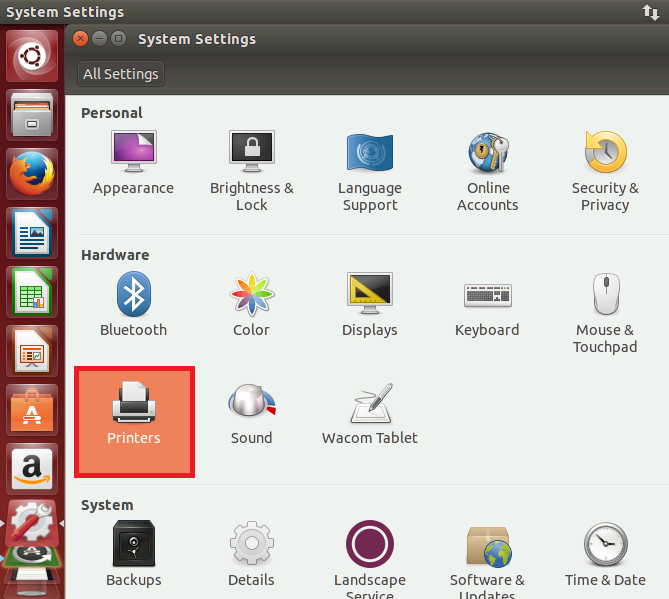
After logging in, choose System Settings:
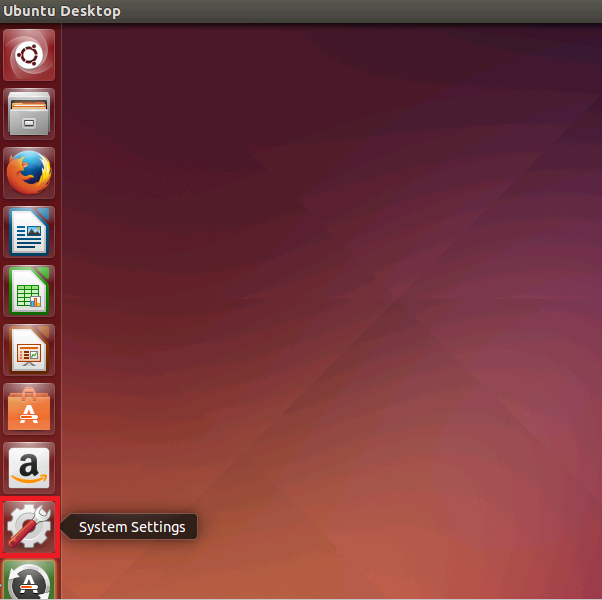
next, Printers:
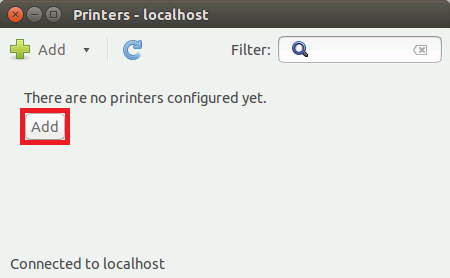
In a Printers - localhost window press Add:
Click Network printer, then Windows Printer via SAMBA. Enter printer address
printers.labs.wmi.amu.edu.pl/Printer_A1_PS- in case of adding a different printer, see list on the beginning of the article. Choose Set authentication details now and enter login inLABS\s000000format and password to logging into the LABS domain: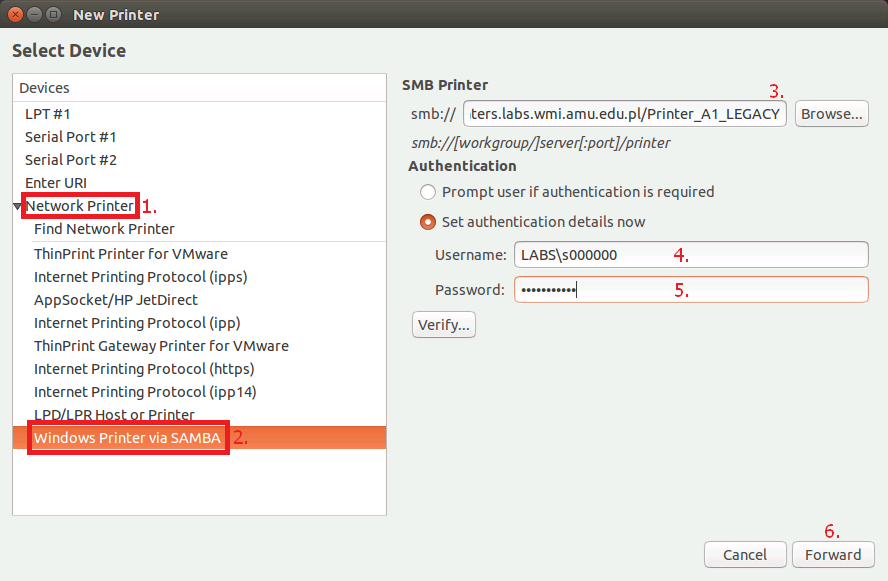
From manufacturer list choose Lexmark:

Find
Lexmark MS810 Foomatic/Postscript [en]on model's list: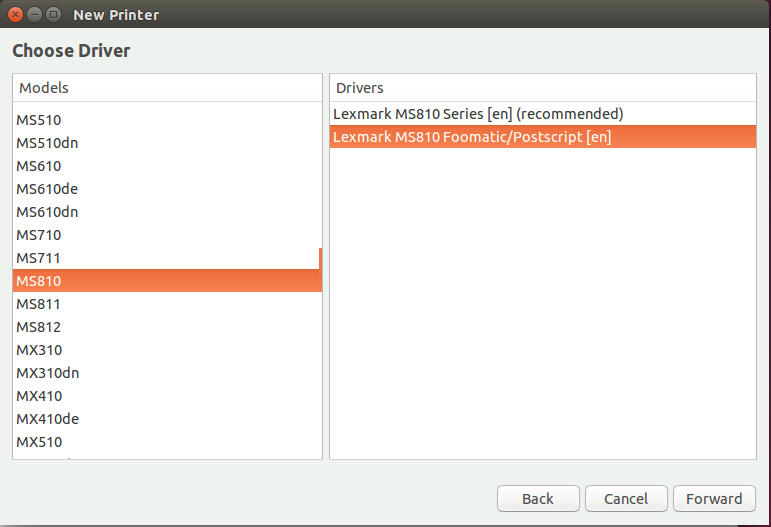
Name printer
Printer_A1and write a description: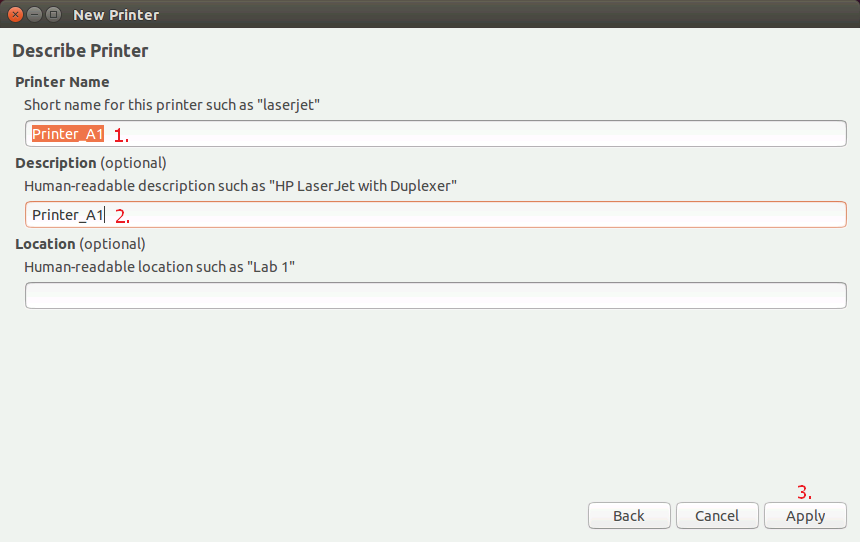
Choose Cancel in test page printing dialog:

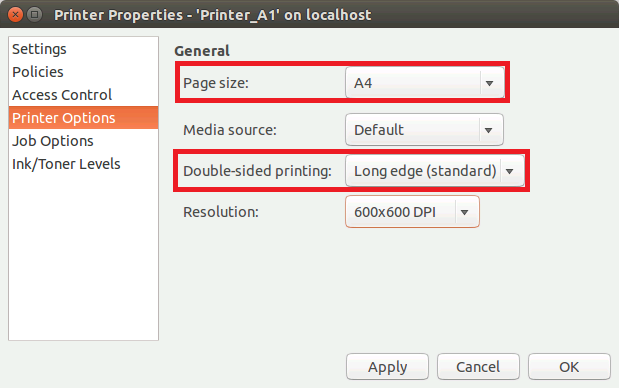
Double-click on Printer_A1.
Go to Printer Options, change Page size to A4 and Double-sided printing na Long edge (standard):
Printing on MacOS from your own computer 12-06-2018 14:35
Printing on MacOS from your own computer
Printing on MacOS is available only from the Faculty's network.
Available printers
| Printer | SMB address | Duplex |
|---|---|---|
| Printer_A1 | smb://printers.labs.wmi.amu.edu.pl/Printer_A1_PS |
Yes |
| Printer_B1L | smb://printers.labs.wmi.amu.edu.pl/Printer_B1L_PS |
Yes |
| Printer_B1P | smb://printers.labs.wmi.amu.edu.pl/Printer_B1P_PS |
Yes |
| Printer_B2L | smb://printers.labs.wmi.amu.edu.pl/Printer_B2L_PS |
Yes |
| Printer_B2P | smb://printers.labs.wmi.amu.edu.pl/Printer_B2P_PS |
Yes |
| Printer_B3L | smb://printers.labs.wmi.amu.edu.pl/Printer_B3L_PS |
Yes |
| Printer_B3P | smb://printers.labs.wmi.amu.edu.pl/Printer_B3P_PS |
Yes |
| Printer_B4P | smb://printers.labs.wmi.amu.edu.pl/Printer_B4P_PS |
Yes |
| Printer_Lib | smb://printers.labs.wmi.amu.edu.pl/Printer_Lib_PS |
Yes |
Guide
The following procedure requires updating macOS to at least Monterey 12.3.
In case of problems with connecting to the printers please try adding it with the address ending with ?encryption=no, for example smb://printers.labs.wmi.amu.edu.pl/Printer_A1_PS?encryption=no. This option will not disable encryption, but will change the behaviour of macOS SMB client to a more compatible one.
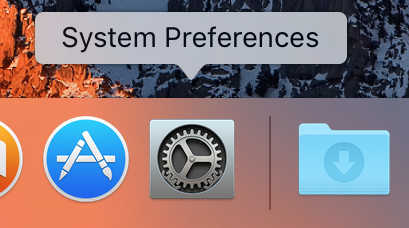
Open System preferences:
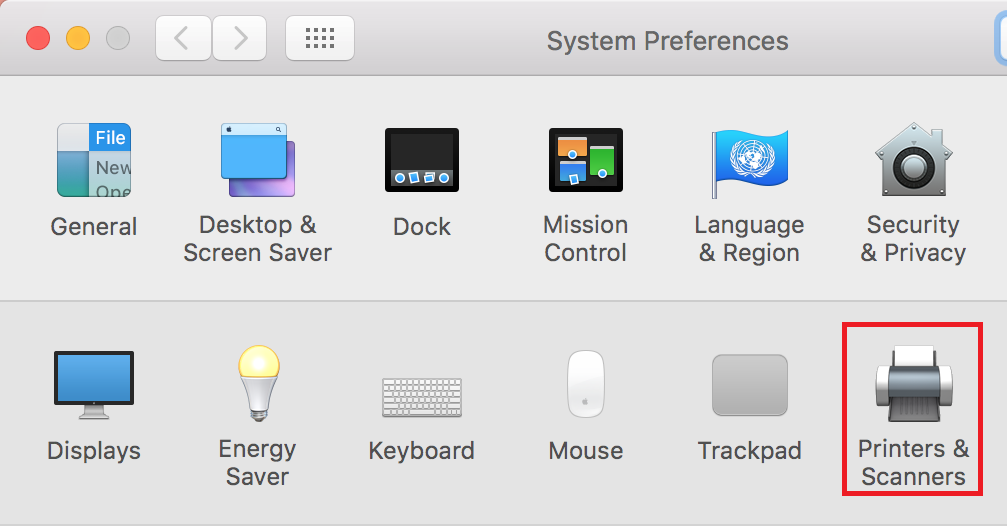
Choose Printers & Scanners:
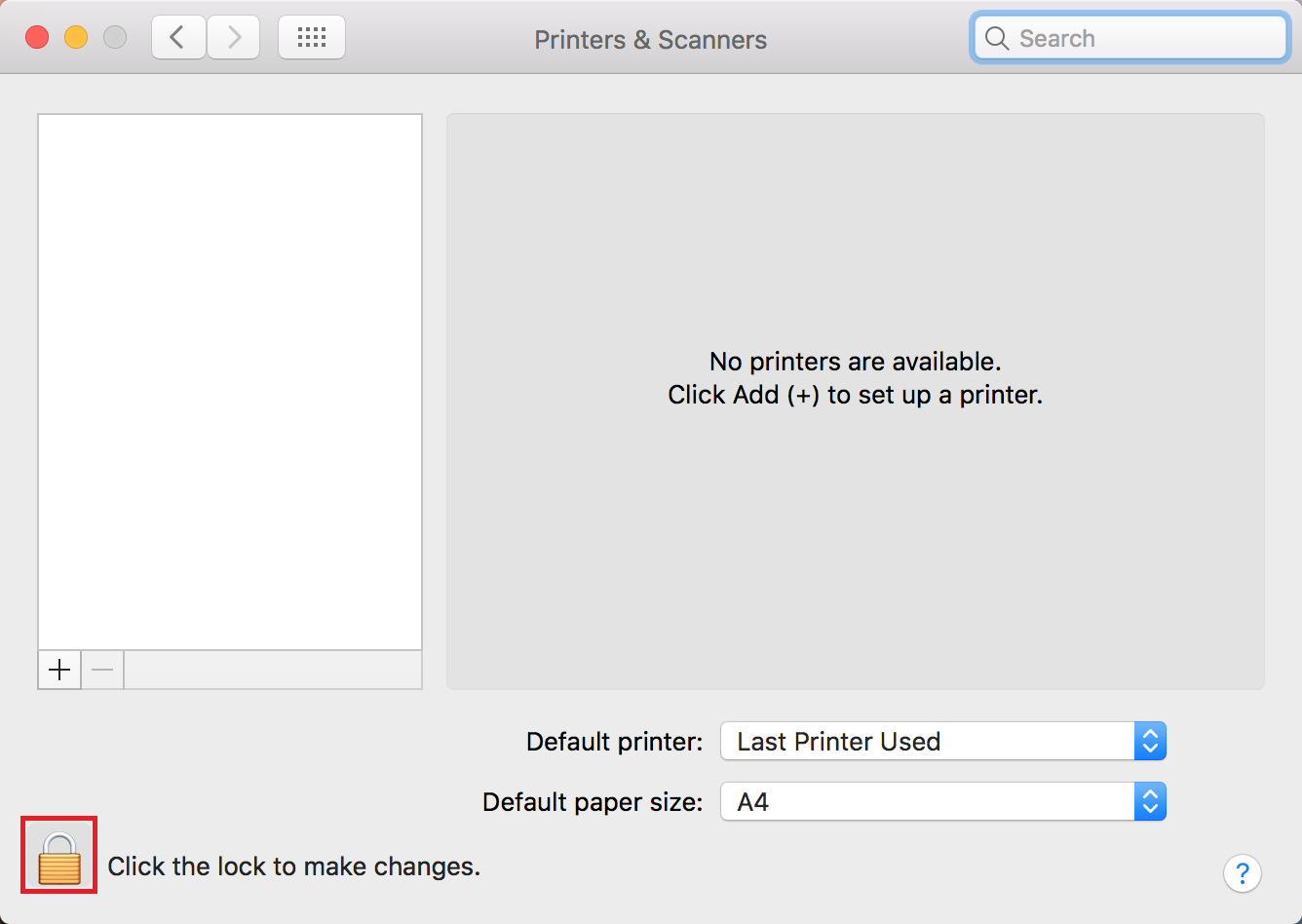
Unlock panel by clicking the padlock:
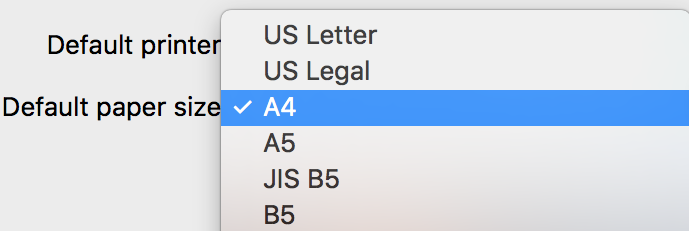
Change Default paper size to A4:
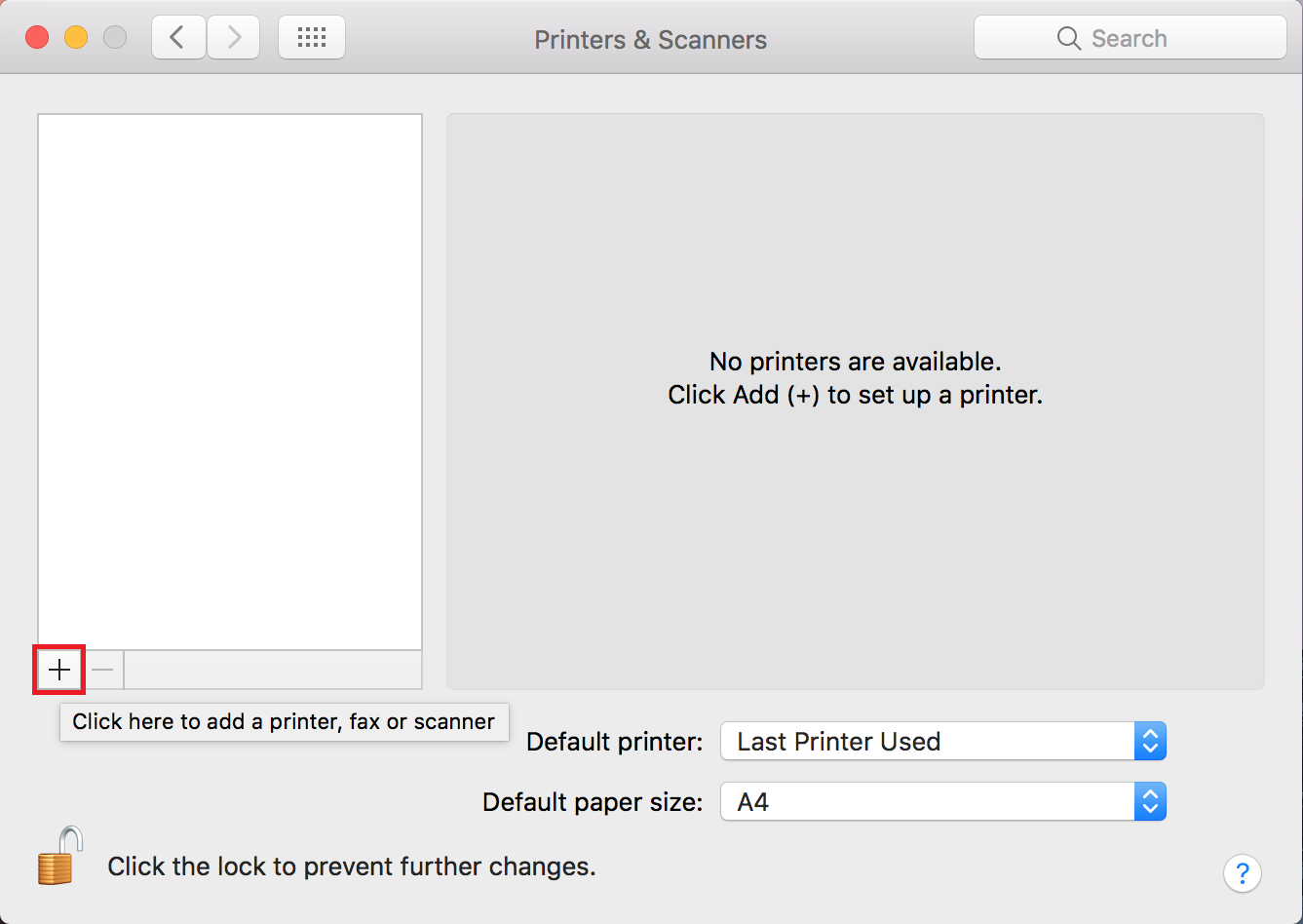
Add a new printer by clicking on +:
Right-click on1 Default and choose Customize Toolbar...:
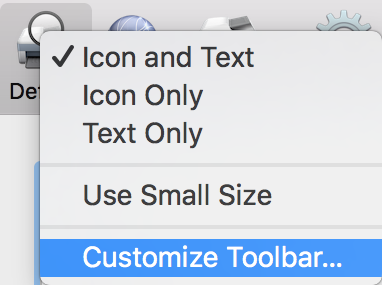
Drag Advanced onto toolbar and press Done:

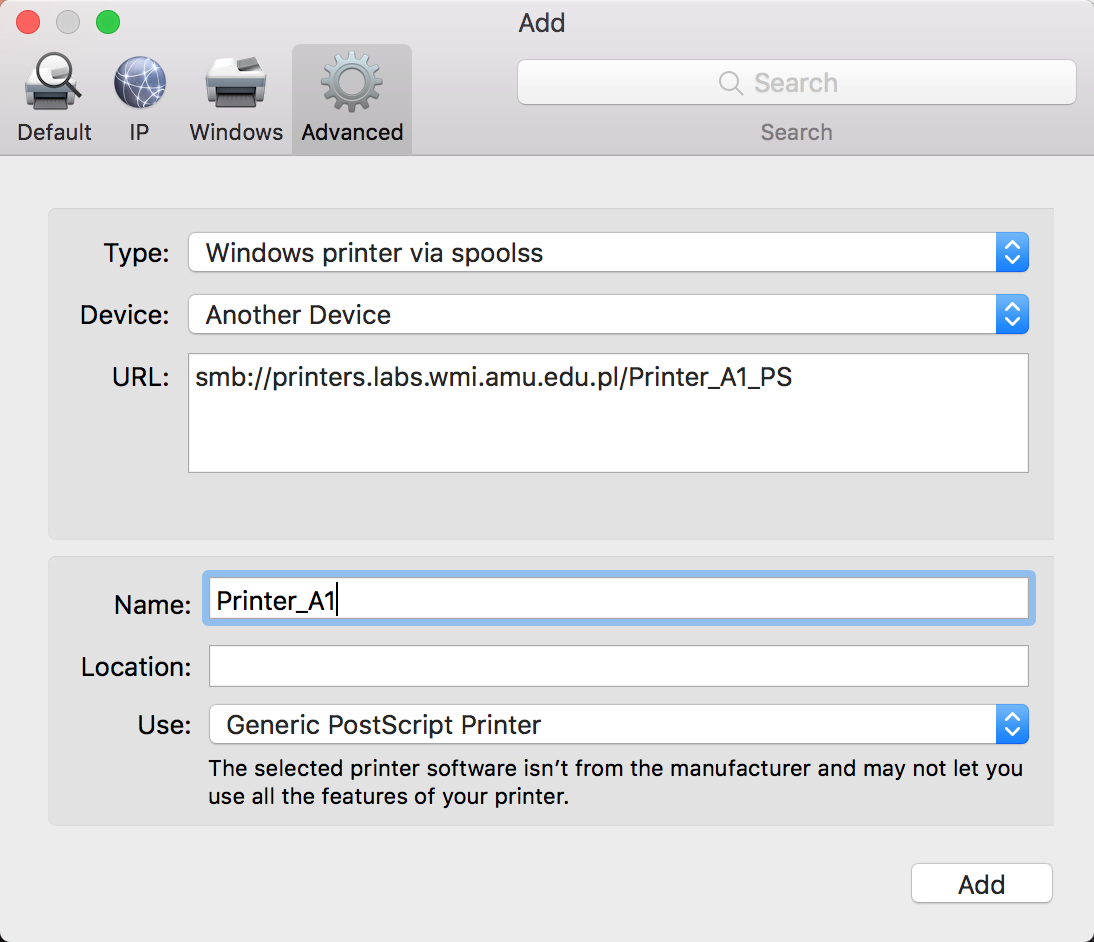
Select Advanced and:
- set Type: to Windows printer via spoolss
- in URL: enter printer address, ie.
smb://printers.labs.wmi.amu.edu.pl/Printer_A1_PS - enter printer's name
- in Use: select Generic PostScript printer
- press Add:
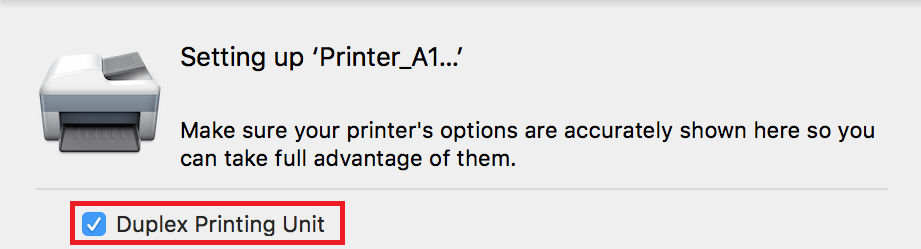
Select Duplex Printing Unit and press OK:
During first printing macOS will show credentials dialog. Enter your doamin login (
LABS\s000000) and password. Select Remember this password in my keychain:
Password change
Open Keychain Access and navigate to Passwords category:
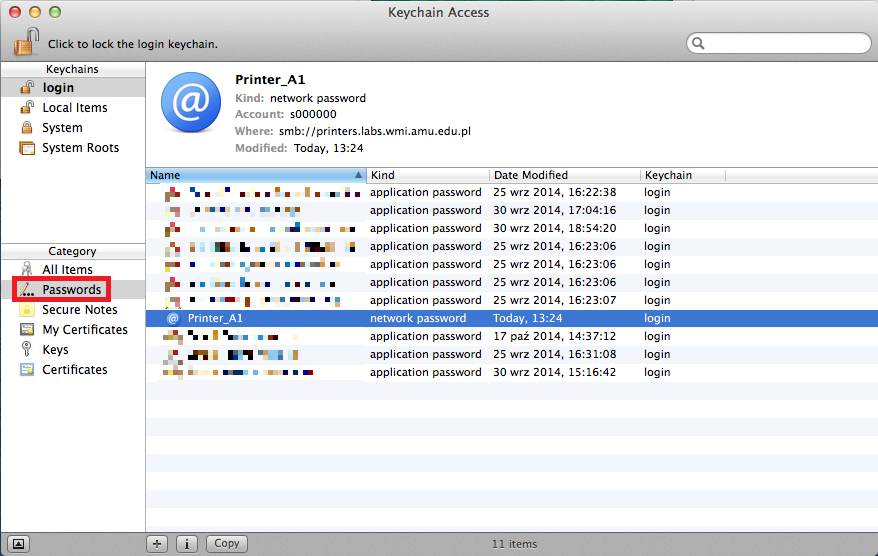
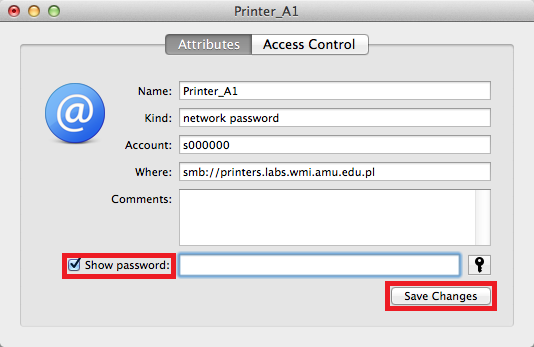
Double-click appropiate record and change password by clicking Show password and entering a new one in it's place:
Printing on Windows 10 or previous one from your own computer 12-06-2018 14:35
Printing on Windows 10 or previous one from your own computer
Available printers
| Printer | Address | Duplex |
|---|---|---|
| Printer_A1 | \\printers.labs.wmi.amu.edu.pl\Printer_A1_PS |
Yes |
| Printer_B1L | \\printers.labs.wmi.amu.edu.pl\Printer_B1L_PS |
Yes |
| Printer_B1P | \\printers.labs.wmi.amu.edu.pl\Printer_B1P_PS |
Yes |
| Printer_B2L | \\printers.labs.wmi.amu.edu.pl\Printer_B2L_PS |
Yes |
| Printer_B2P | \\printers.labs.wmi.amu.edu.pl\Printer_B2P_PS |
Yes |
| Printer_B3L | \\printers.labs.wmi.amu.edu.pl\Printer_B3L_PS |
Yes |
| Printer_B3P | \\printers.labs.wmi.amu.edu.pl\Printer_B3P_PS |
Yes |
| Printer_B4P | \\printers.labs.wmi.amu.edu.pl\Printer_B4P_PS |
Yes |
| Printer_Lib | \\printers.labs.wmi.amu.edu.pl\Printer_Lib_PS |
Yes |
Guide
If your laptop is connected to the WMI network, you can print from it directly from Windows.
Open Control Panel -> Hardware and sound -> Devices and printers and click Add a printer:

Stop searching and click on The printer I want isn't listed:

Select Select a shared printer by name and enter printer's address, for example
\\printers.labs.wmi.amu.edu.pl\Printer_A1_PS. Approve with Next button.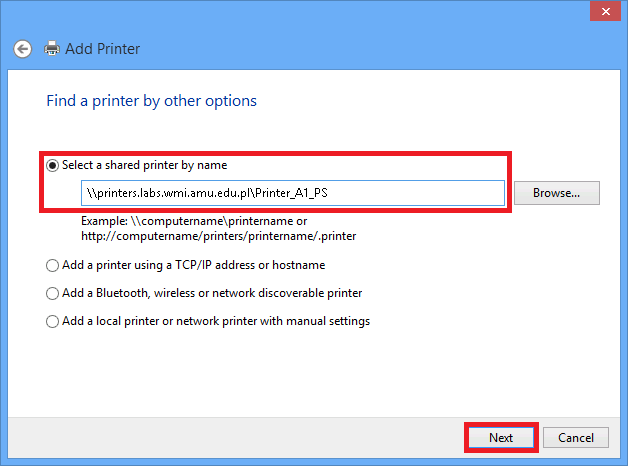
Enter login in
LABS\s000000format and LABS domain password, select password remembering: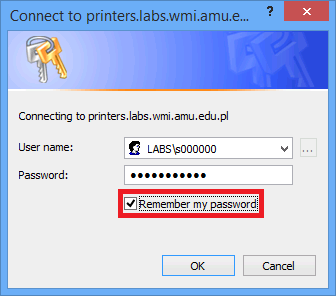
Finish installation procedure.
Due to the system's security against the PrintNightmare attack, there is a chance that the printer will not install properly on Windows.
To disable the protection, open CMD with administrator privileges and type the command below. The given command allows you to install drivers as a non-admin user.
reg add "HKEY_LOCAL_MACHINE\Software\Policies\Microsoft\Windows NT\Printers\PointAndPrint" /v RestrictDriverInstallationToAdministrators /t REG_DWORD /d 0 /fThis command makes your system vulnerable to PrintNightmare attack.
We do not take any responsiblilty for these actions. At the moment, we do not know a better way to solve this issue. After the installation of the printers, we recommend to re-enable protection by executing the following command:
reg add "HKEY_LOCAL_MACHINE\Software\Policies\Microsoft\Windows NT\Printers\PointAndPrint" /v RestrictDriverInstallationToAdministrators /t REG_DWORD /d 1 /f
Printer removing and editing
Open Control Panel -> User Accounts -> Credential Manager -> Windows Credentials -> Expand -> Edit:
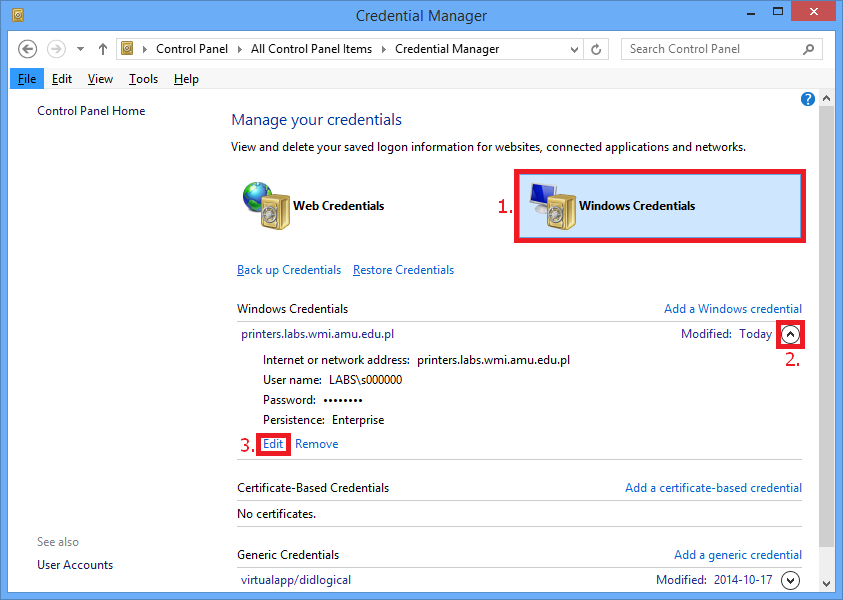
Enter new credentials paying attention to login format (
LABS\s000000) and press Save:
Printing on Windows 11 from your own computer 12-06-2018 14:35
Printing on Windows 11 from your own computer
Available printers
| Printer | Address | Duplex |
|---|---|---|
| Printer_A1 | \\printers.labs.wmi.amu.edu.pl\Printer_A1_PS |
Yes |
| Printer_B1L | \\printers.labs.wmi.amu.edu.pl\Printer_B1L_PS |
Yes |
| Printer_B1P | \\printers.labs.wmi.amu.edu.pl\Printer_B1P_PS |
Yes |
| Printer_B2L | \\printers.labs.wmi.amu.edu.pl\Printer_B2L_PS |
Yes |
| Printer_B2P | \\printers.labs.wmi.amu.edu.pl\Printer_B2P_PS |
Yes |
| Printer_B3L | \\printers.labs.wmi.amu.edu.pl\Printer_B3L_PS |
Yes |
| Printer_B3P | \\printers.labs.wmi.amu.edu.pl\Printer_B3P_PS |
Yes |
| Printer_B4P | \\printers.labs.wmi.amu.edu.pl\Printer_B4P_PS |
Yes |
| Printer_Lib | \\printers.labs.wmi.amu.edu.pl\Printer_Lib_PS |
Yes |
Guide
If your laptop is connected to the WMI network, you can print from it directly from Windows.
Open Start Menu, type and select Credential Manager. Go to Windows Credentials tab and select Add Windows credential:
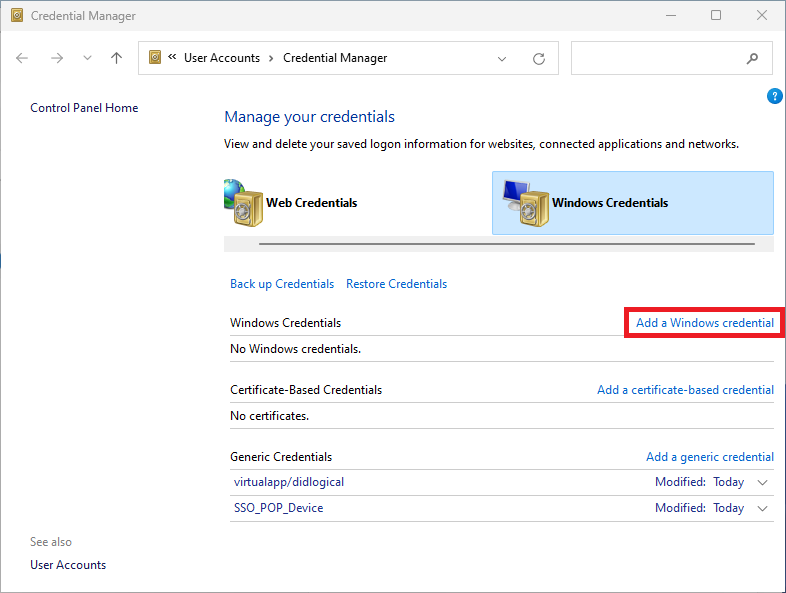
Fill all required fields. Enter the login in
LABS\s000000format and LABS domain password, and then click OK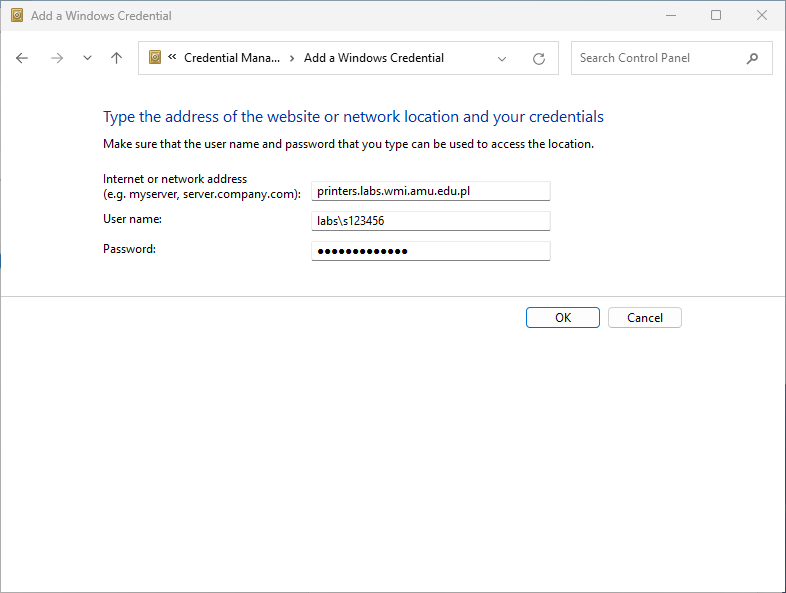
Open Start Menu, type and select Printers & Scanners. Select Add device and then Add manually


Select Select a shared printer by name and enter printer's address, e.g.
\\printers.labs.wmi.amu.edu.pl\Printer_A1_PS. Approve with Next button.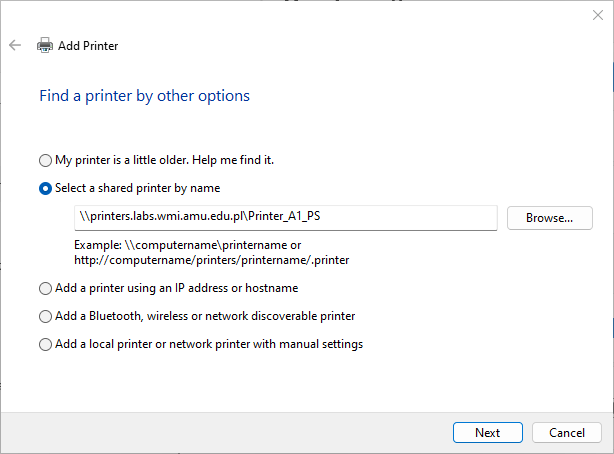
Finish installation procedure.
Due to the system's security against the PrintNightmare attack, there is a chance that the printer will not install properly on Windows.
To disable the protection, open CMD with administrator privileges and type the command below. The given command allows you to install drivers as a non-admin user.
reg add "HKEY_LOCAL_MACHINE\Software\Policies\Microsoft\Windows NT\Printers\PointAndPrint" /v RestrictDriverInstallationToAdministrators /t REG_DWORD /d 0 /fThis command makes your system vulnerable to PrintNightmare attack.
We do not take any responsiblilty for these actions. At the moment, we do not know a better way to solve this issue. After the installation of the printers, we recommend to re-enable protection by executing the following command:
reg add "HKEY_LOCAL_MACHINE\Software\Policies\Microsoft\Windows NT\Printers\PointAndPrint" /v RestrictDriverInstallationToAdministrators /t REG_DWORD /d 1 /f
Printer removing and editing
Open Start Menu, type and select Credential Manager. Go to Windows Credentials tab and select Edit or Remove
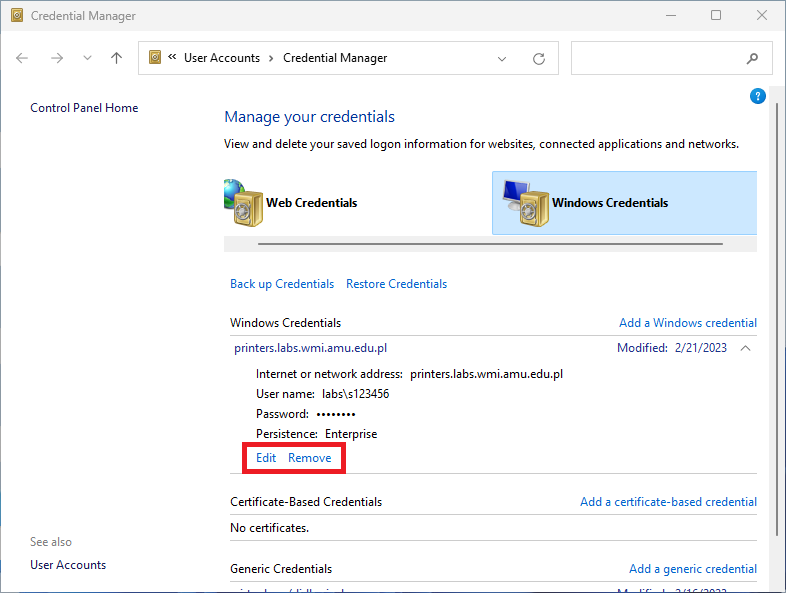
Open Start Menu, type and select Printers & Scanners. Select a printer and then press Remove button.

Profile 12-06-2018 14:35
Profile
Windows user's profile is a set of files and directories where user's program settings, desktop settings, HKCU registry branch and many more parameters allowing for personalization of user's work environment are stored.
In LABS domain, every user has his own directory assigned, where profile files are stored (that's \\files\profiles\<username>.v6 for Windows 10 i \\files\profiles\<username>.v4 for Windows 8.1). Disk limits ("quota") are imposed on that directory. Details about current disk quotas are to be found in WMI Panel.
Profile on its own - so settings which are stored in those files - is limited on operating system level.
Issues
If you have problem with your profile, visit Profile issues.
SSH access 12-06-2018 14:35
SSH access
What is it?
You can use shell on the LTS server, connecting to it by SSH (Secure Shell) procotol. This way you can work on the server almost like it's your own computer. It has many advantages, most importantly that wherever you connect, you always use the same account.
During a first connection your client will give you key's fingerprint of server you're connecting to. To rule out man in the middle attack, verify given fingerprint with fingerprints list of faculty's servers.
From Linux
On Linux most of the time ssh program is installed by default. Therefore to connect with LTS, it is sufficient to write:
ssh s123456@lts.wmi.amu.edu.pl
Where s123456 is your login.
If you're connecting for the first time, program will ask to accept server's identification.
After that standard credentials input, welcome message and command prompt will appear - you're ready to work on a server.
Automatic authentication without providing a password
Thanks to Kerberos protocol, logging in from laboratories' computers does not require password.
Windows
Just like on Linux, Windows 10 has ssh installed. To connect to the LTS server, use the same command in CMD:
ssh s123456@lts.wmi.amu.edu.pl
Earlier versions of Windows do not come with preinstalled SSH client. Therefore, we recommend to use popular program PuTTY, which is also available on Windows in laboratories.
After its startup it is enough to enter server address: lts.wmi.amu.edu.pl, select SSH protocol (port 22) and accept.
Like on Linux, on a first connection program will ask about acceptation of server's identicifation. Afterwards, black window for credentials input will appear.
What's next?
After that it's just like on every other Linux. If you'd like to learn basics of this system, we recommend enrolling on "Operating Systems" subject or checking resources which our University's Services offers.
Databases 12-06-2018 14:35
Databases
Faculty's students and employees can create databases on the following servers:
Services 12-06-2018 14:35
Services
Important informations
ATTENTION: To get more informations on each of the following topics, please go to the specific subpage.
Informations on accounts and domain
Profile - a set of files and directories where user's program settings, desktop settings and many more parameters are stored.
Home directory - directory for storing own files and subdirectories. Users can only access their own home directory and the Poligon partition.
Poligon - public space located on the local drive. Its content varies and depends on the computer you are logged in to.
Resources - a space where lecturers put materials for students.
LDAP - a service provided by WMI enabling usage of directory services in the LABS domain.
Information on e-mail accounts
Faculty's Mail - managed by the administrators of the FMCS Laboratories. It offers e-mail addresses in wmi.amu.edu.pl domain.
University's Mail - managed by UAM IT Center. It offers e-mail addresses in amu.edu.pl and st.amu.edu.pl domains.
Mailing lists - allow sending messages to everyone on a given list.
Access to services from outside the Faculty
VPN - allows for a safe access to FMCS network from outside. It is required to connect to many Faculty's services outside the Faculty.
SSH - access to FMCS servers via SSH makes it easier to work remotely.
SFTP - the easiest way to access your files and copy them to your own device.
Remote desktop - allows access to terminal servers.
Remote laboratories - allows remote connection to computers located in the FMCS Laboratories.
Faculty's services
Databases - we provide 3 types of databases - MySQL, PostgreSQL and MSSQL. Users can create MySQL databases by themselves.
WWW server - it is used for sharing private websites, written in HTML and PHP technologies.
IIS server - it is used to share private websites, written in the .NET family technology.
Project account - is created for the needs of projects, e.g. for co-hosting the application.
Virtual machine - if the project account is insufficient, there is a possibility to use a virtual machine set up on FMCS servers.
Git - a version control system hosted at the Faculty. It allows to work together on the same files by many people.
Jira - project management system. Users can choose from 2 methodologies - scrum and kanban.
Jenkins - used to automate, build, test and deploy projects.
Services offered by Microsoft
Office365 - enables usage of Microsoft Office 365 apps through browser and enables storing 1TB of data in OneDrive cloud for each employee.
Microsoft Office 2016 - the license allows to install Microsoft Office 2016 suite on 5 devices.
Adt4t - enables students and employees to use legal versions of Windows operating system and other Microsoft software on their private computers.
IIS 12-06-2018 14:32
IIS
Every student and employee of our Faculty has access to the Internet Information Services (IIS) server.
It is possible to host pages based on ASP.NET Core 1.1, 2.x and 3.x. Please indicate versions of .NET and ASP.NET in the ticket.
Access
To gain access to it create a new ticket using helpdesk and include following information:
- user LABS domain login
- proposed page address (by default
https://<login>.iis.wmi.amu.edu.pl) - used technologies (.NET 4.x or .NET Core1.x/2.x/3.x, ASP.NET or ASP.NET Core)
Placing the page
After creating a page by administrators place the project data in the public_iis directory in your home directory.
In case of .NET Core publishing procedure will be sent as a response to the ticket.
Application update
To update application running on IIS:
- create a file named
app_offline.htmin main app's directory, which will contain message for users, e.g. Maintenance in progress - edit app's code
- delete/rename
app_offline.htm
Operation veryfying
The easiest way is to put a text file in a j:\public_iis\ directory and try to enter your page.
IIS server loads main page from the following files:
default,default.asp,index.htm,index.html,iisstart.htm
Aliases 12-06-2018 14:13
Aliases
Employees
Page is to be placed in a directory directly in a home directory. Within a day since directory creation default aliases are going to be created:
- login.faculty.wmi.amu.edu.pl
- login.students.wmi.amu.edu.pl
where login is a username in the LABS domain. It is also possible to set additional aliases:
- alias.faculty.wmi.amu.edu.pl
- alias.students.wmi.amu.edu.pl
Setting additional aliases is possible in a user's panel. Alias will launch within a day since setting.
Students
Page is to be placed in a directory directly in a home directory. Within a day since directory creation default alias is going to be created:
- login.students.wmi.amu.edu.pl
where login is a username in the LABS domain. It is also possible to set additional aliases:
- alias.students.wmi.amu.edu.pl
Setting additional aliases is possible in a user's panel. Alias will launch within a day since setting.
Mail aliases
Mail aliases are also configured in a user's panel.
Aliases restrictions
- Alias may consists only from lowercase letters, numbers and - symbol, where the first symbol must be a letter.
- Alias cannot be a name of an another user in the LABS domain.
- Some names that could lead to abuse, such as support or abuse are restricted.
- If two users sets the same alias, it will work for one who set it first.
- Using aliases against regulations and netiquette may result in their deactivation for a given user.
Web servers 07-06-2018 11:28
Web Servers
Every student (and employee) of our Faculty can set up their own website.
Address
If your login is s123456 your page address is https://s123456.students.wmi.amu.edu.pl/
There is also a possibility of setting up a page vhost in form https://<your name>.students.wmi.amu.edu.pl/
Employees' webpages are also available at https://login.faculty.wmi.amu.edu.pl/ and https://<your name>.faculty.wmi.amu.edu.pl/ in case of an alias..
Page deploying
Firstly, copy page files into public_html directory on lts.wmi.amu.edu.pl server. It means that:
Log in through SSH onto
lts.wmi.amu.edu.plserverCreate directory for a website:
install -d ~/public_html
If directory haven't existed before, it's full activation may take up to 24h since creation.
Copy your page files there using
scp,sftporcpGive those files appropiate permissions:
chmod -R a+rX ~/public_htmlRead permission for directories is not required. If you don't want a liast with directory's content to show, you can revoke that permission.
Add permissions for user
httpto enter your home directory:chmod o+x ~Names of automatically showed or launched files are as follows:
index.html index.cgi index.pl index.php index.py index.xhtml index.htm
Remember that website is on a faculty's server, therefore it has to be in accordance with regulations. Particulary unacceptable is using a server for pursuing of any economic activities.
Available technologies
Aliases
Employees
Page is to be placed in a directory directly in a home directory. Within a day since directory creation default aliases are going to be created:
- login.faculty.wmi.amu.edu.pl
- login.students.wmi.amu.edu.pl
where login is a username in the LABS domain. It is also possible to set additional aliases:
- alias.faculty.wmi.amu.edu.pl
- alias.students.wmi.amu.edu.pl
Setting additional aliases is possible in a user’s panel. Alias will launch within a day since setting.
Students
Page is to be placed in a directory directly in a home directory. Within a day since directory creation default alias is going to be created:
- login.students.wmi.amu.edu.pl
where login is a username in the LABS domain. It is also possible to set additional aliases:
- alias.students.wmi.amu.edu.pl
Setting additional aliases is possible in a user’s panel. Alias will launch within a day since setting.
Mail aliases
Mail aliases are also configured in a user’s panel.
Aliases restrictions
- Alias may consists only from lowercase letters, numbers and - symbol, where the first symbol must be a letter.
- Alias cannot be a name of an another user in the LABS domain.
- Some names that could lead to abuse, such as support or abuse are restricted.
- If two users sets the same alias, it will work for one who set it first.
- Using aliases against regulations and netiquette may result in their deactivation for a given user.
Windows
Windows
This tutorial describes the process of connecting a Windows PC to the WMI wireless network using a Windows 10 notebook as an example.
Windows Vista and Windows 7 require a certificate to be installed. You can use WMIWirelessSetup.exe to install it on your computer.
Click on the Wi-Fi icon in the taskbar (usually in the bottom right corner of the screen)

Select
WMIfrom the list of available networks and click Connect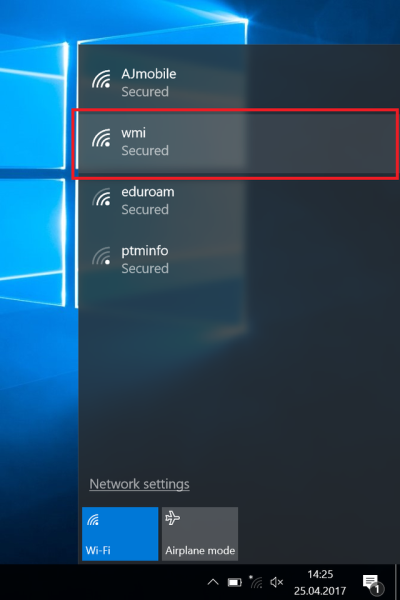

Enter your login credentials from the LABS domain - including "LABS" (the credentials that you use in computer laboratories), i.e. for example LABS\s12345, and click OK
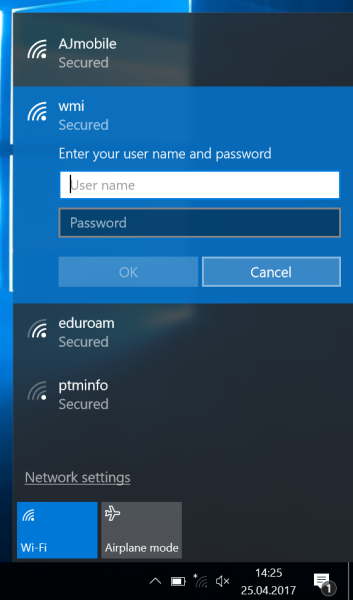
If a warning appears, click Connect
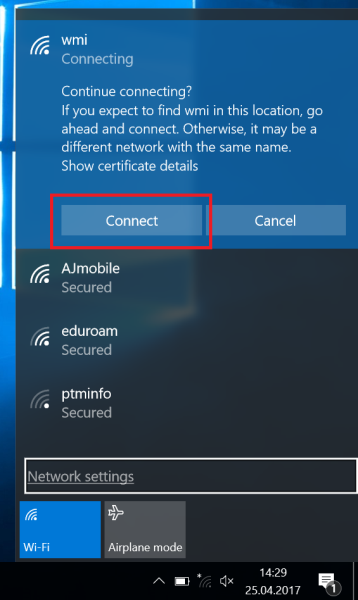
The network will be saved and the connection will be estabilished
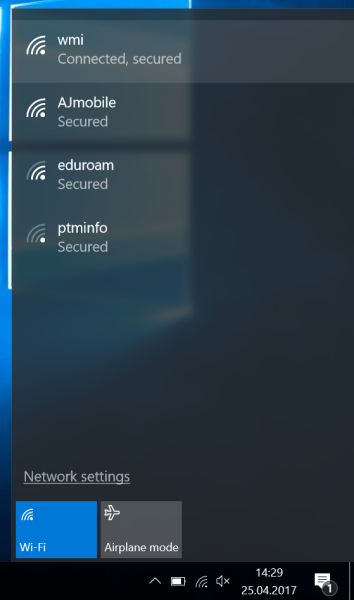
If you have trouble connecting despite providing valid credentials, your account might have been automatically locked due to too many invalid login attempts. Wait 2 minutes or visit the Laboratories Staff and ask for your account to be unlocked.